> ## Documentation Index
> Fetch the complete documentation index at: https://docs.checkoutrules.com/llms.txt
> Use this file to discover all available pages before exploring further.
# Concurrency
> Learn how multiple rules of the same type work together and how they impact the checkout process.
## Overview
We can create multiple rules of the same type. Concurrency describes what happens when multiple active rules of the same type exist and then are triggered on the checkout page at the same time.
This article will help you understand what happens when these rules are applied together, and how their combined effect can influence the checkout process.
## Explanation
When you add more than one rule of the same type, they all run **independently but almost at the same time**. The checkout result is the combined effect of all rules that are triggered and generate actions. The order of execution for these rules is **non-deterministic** according to Shopify, they can execute in any order.
Every rule can only generate actions which can be combined with other actions generated by the same rule type.
For example, you can have a rule to hide a shipping method, but you cannot have a rule to show a shipping method.
All hide shipping methods rules will be combined together to determine all the shipping methods that should be hidden.
Here’s how it works step by step:
Every rule starts executing almost at the same time, checking its own conditions to determine if it should generate any actions.
If the condition of a rule is satisfied, its action is generated.
> For example, you can have a rule to hide any shipping method that contains "Worldwide" in its name. Then another rule to hide any shipping method that contains "International Shipping" in its name. Both rules will generate actions, one will hide "Worldwide" and the other will hide "International Shipping".
If multiple rules generate actions, their actions are combined and sent to the Shopify Checkout.
> For example, Rule 1 hides a method that contains "Worldwide", Rule 2 hides a method that contains "International Shipping" → A combined action of hide both Worldwide and International Shipping will be generated and sent to the Shopify Checkout.
## Example use case
Let’s say you want to **hide certain shipping methods** based on the customer’s zip code.\
For this, let’s suppose we create the following rules:
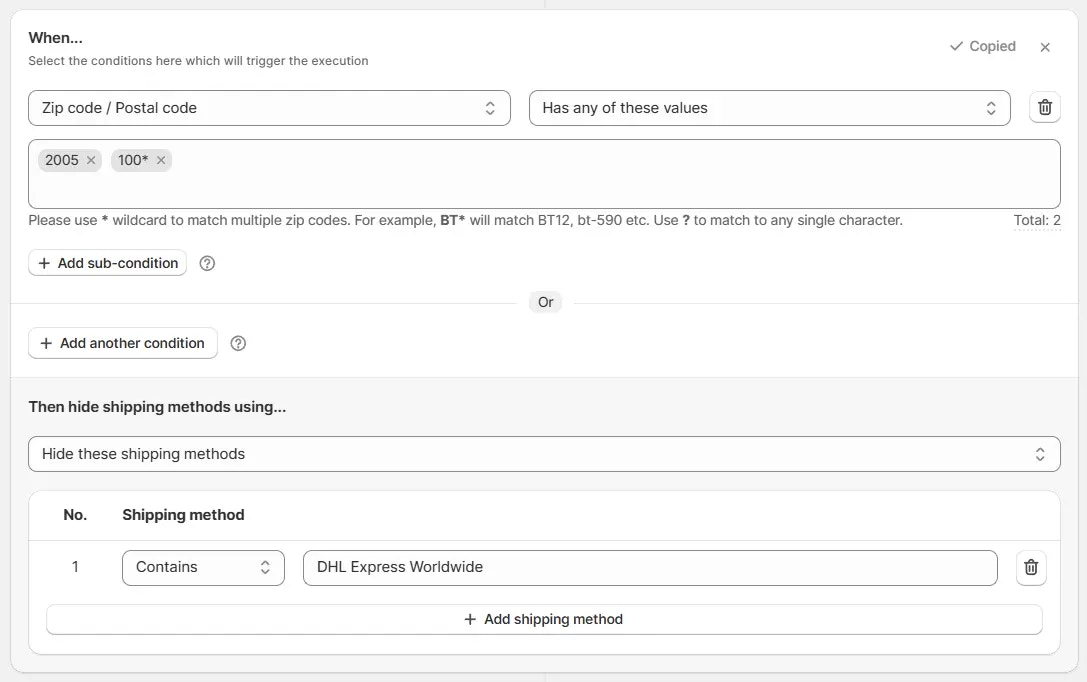
**Rule 1** → Hide `DHL Express Worldwide` shipping method when zip code is **2005** or starts with **100**.
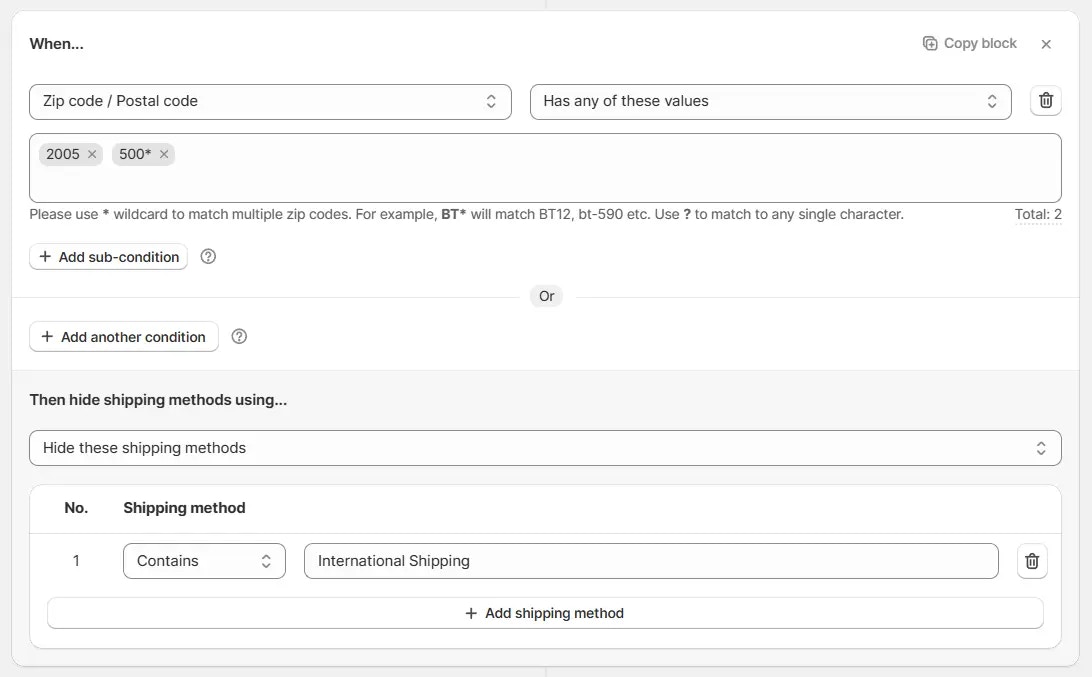
**Rule 2** → Hide `International Shipping` method when zip code is **2005** or starts with **500**.
### Case 1: Only one rule applies
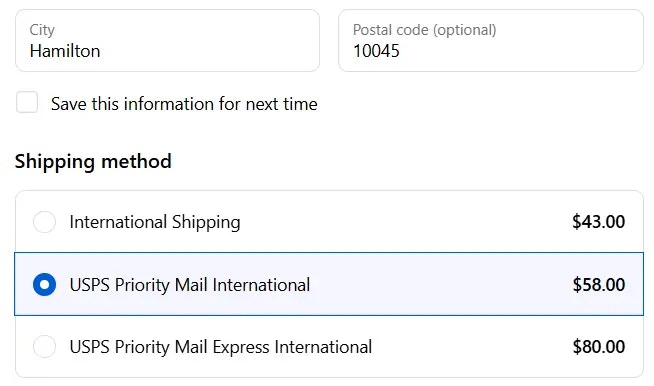
* If the customer enters a zip code like **10045**, **Rule 1** applies, because conditions for Rule 2 are not met, so it does not generate any actions.
→ At checkout, the `DHL Express Worldwide` method is hidden, but `International Shipping` and other methods remain available as shown in the screenshot below.
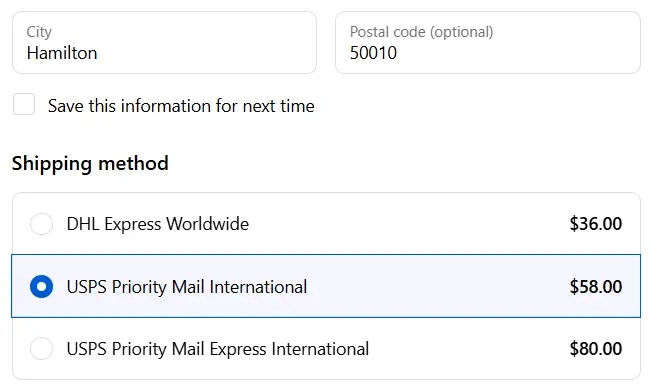
* If the customer enters a zip code like **50010**, **Rule 2** applies.\
→ At checkout, the `International Shipping` method is hidden, but `DHL Express Worldwide` and other methods remain available.
### Case 2: Both rules apply together
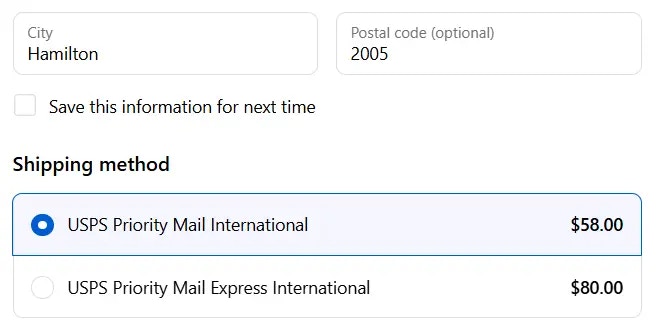
* If the customer enters the **zip code 2005**, then conditions are met for both rules, so **both Rule 1 and Rule 2** apply together.
* This means **both `DHL Express Worldwide` and `International Shipping`** will be hidden from checkout, leaving only the other available methods.
## Rule conflicts
If multiple rules are not concurrency safe, they may conflict with each other and cause issues on the checkout page.
We need to ensure that the rules are not conflicting with each other to avoid issues.
Caution needed when using multiple rules of the same type. Always ensure that the rules are not conflicting with each other to avoid issues.
### Example: Only show these shipping methods
When a rule is set to **Only show these shipping methods**, it will try to hide all shipping methods that are not in the list which we want to "only show".
If multiple rules are set to **Only show these shipping methods**, they may conflict with each other and cause all shipping options to be hidden.
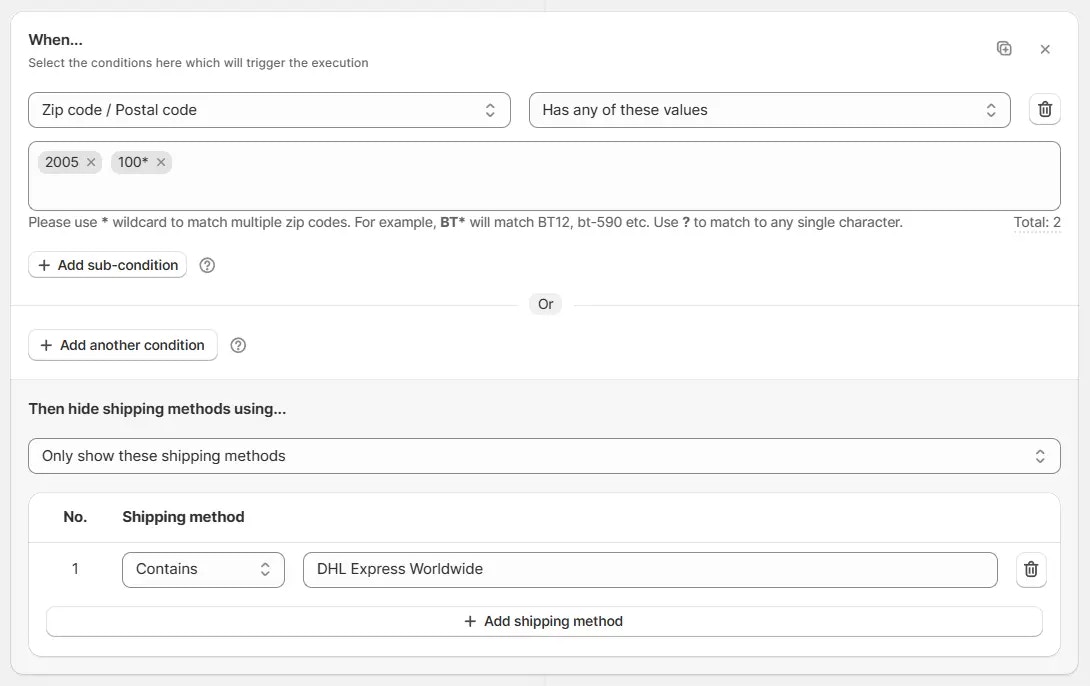
> **Example:** Rule 1 → Only show `DHL Express Worldwide` shipping method when zip code is 2005 or starts with 100.
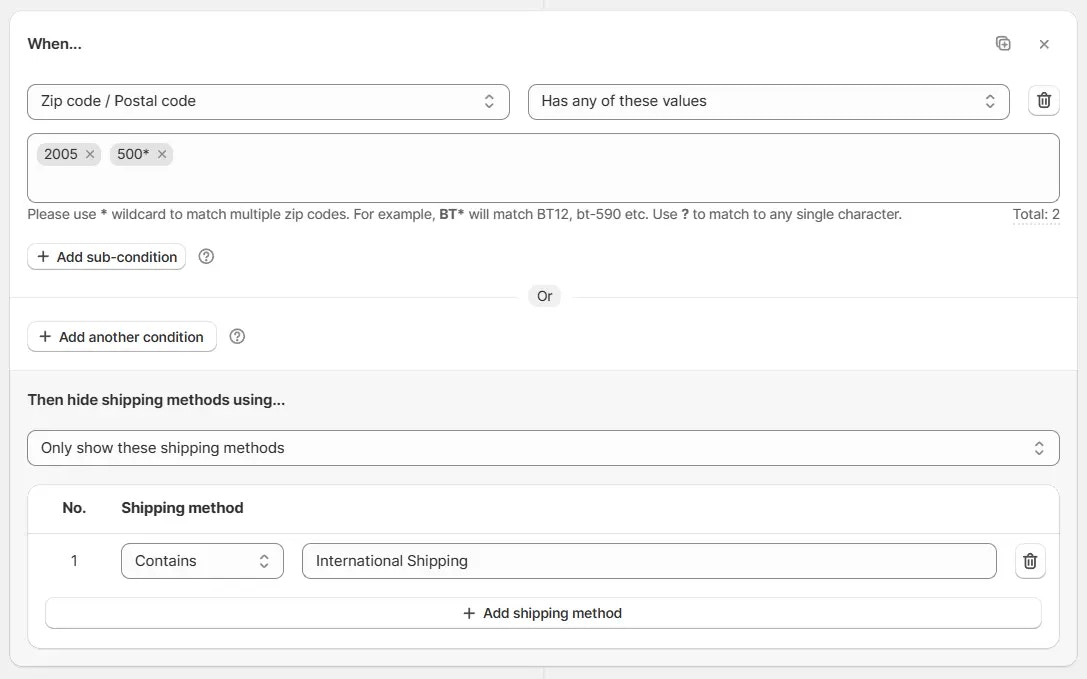
> Rule 2 → Only show `International Shipping` shipping method when zip code is 2005 or starts with 500.
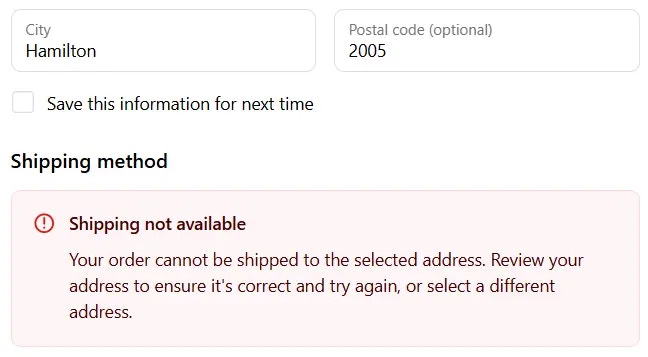
When both rules run for same ZIP code **2005**, Rule 1 will try to hide all shipping methods that are not `DHL Express Worldwide` and Rule 2 will try to hide all shipping methods that are not `International Shipping`. This will result in **No shipping available** error because both rules are not compatible with each other.
To solve this issue, we need to create a 3rd rule here, which will handle the common zip codes separately.
In this way, we can ensure Rule 1 and Rule 2 are independent of each other. Rule 3 will handle the common zip codes separately and we can be sure of what shipping methods will be available for the customer in each case.
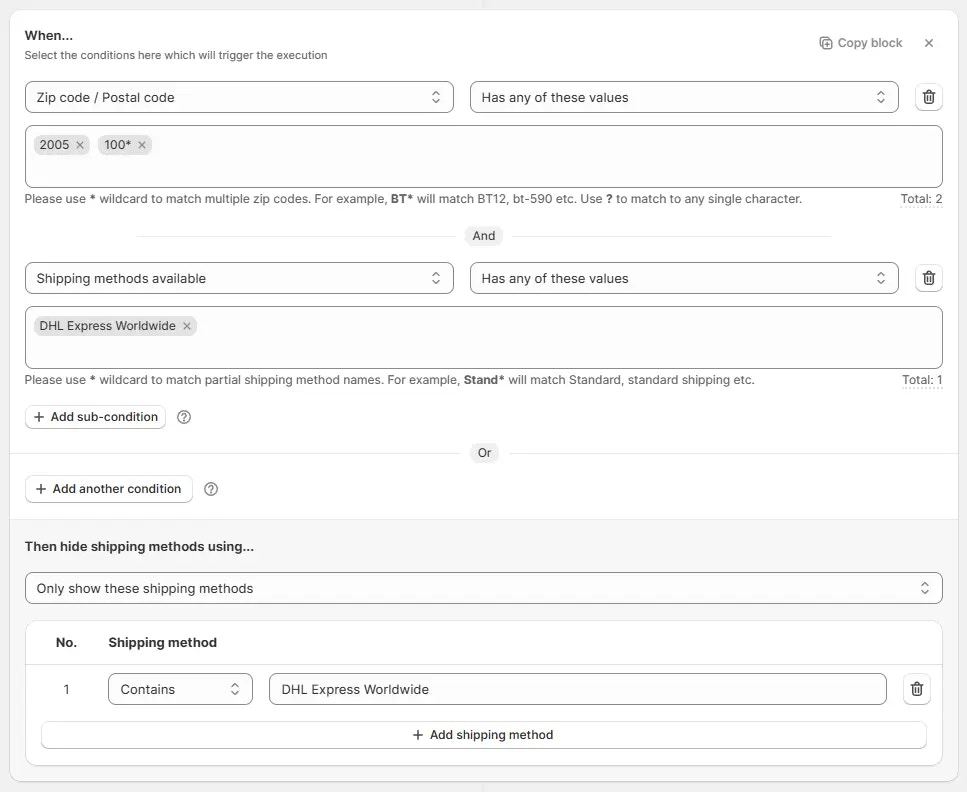
As a general tip, we should always try to pair **Only show these shipping methods** with the **Shipping Method Available** condition as a sub-condition, and use the same value(s) in both.
> **Example:** Rule → Only show `DHL Express Worldwide` shipping method when zip code is 2005 or starts with 100 *AND* sub-condition **Shipping Method Available** has any of these values: *DHL Express Worldwide* This will make sure that *DHL Express Worldwide* is actually available for that checkout before we try to hide all other shipping methods.
In this way, we can make sure that the shipping methods are actually available on the checkout page in the first place, that we want to "Only show" to the customer.
 In this way, we can make sure that the shipping methods are actually available on the checkout page in the first place, that we want to "Only show" to the customer.
 **Rule 2** → Hide `International Shipping` method when zip code is **2005** or starts with **500**.
 ### Case 1: Only one rule applies
* If the customer enters a zip code like **10045**, **Rule 1** applies, because conditions for Rule 2 are not met, so it does not generate any actions.
→ At checkout, the `DHL Express Worldwide` method is hidden, but `International Shipping` and other methods remain available as shown in the screenshot below.
### Case 1: Only one rule applies
* If the customer enters a zip code like **10045**, **Rule 1** applies, because conditions for Rule 2 are not met, so it does not generate any actions.
→ At checkout, the `DHL Express Worldwide` method is hidden, but `International Shipping` and other methods remain available as shown in the screenshot below.
 * If the customer enters a zip code like **50010**, **Rule 2** applies.\
→ At checkout, the `International Shipping` method is hidden, but `DHL Express Worldwide` and other methods remain available.
* If the customer enters a zip code like **50010**, **Rule 2** applies.\
→ At checkout, the `International Shipping` method is hidden, but `DHL Express Worldwide` and other methods remain available.
 ### Case 2: Both rules apply together
* If the customer enters the **zip code 2005**, then conditions are met for both rules, so **both Rule 1 and Rule 2** apply together.
* This means **both `DHL Express Worldwide` and `International Shipping`** will be hidden from checkout, leaving only the other available methods.
### Case 2: Both rules apply together
* If the customer enters the **zip code 2005**, then conditions are met for both rules, so **both Rule 1 and Rule 2** apply together.
* This means **both `DHL Express Worldwide` and `International Shipping`** will be hidden from checkout, leaving only the other available methods.
 ## Rule conflicts
If multiple rules are not concurrency safe, they may conflict with each other and cause issues on the checkout page.
We need to ensure that the rules are not conflicting with each other to avoid issues.
## Rule conflicts
If multiple rules are not concurrency safe, they may conflict with each other and cause issues on the checkout page.
We need to ensure that the rules are not conflicting with each other to avoid issues.
 > Rule 2 → Only show `International Shipping` shipping method when zip code is 2005 or starts with 500.
 When both rules run for same ZIP code **2005**, Rule 1 will try to hide all shipping methods that are not `DHL Express Worldwide` and Rule 2 will try to hide all shipping methods that are not `International Shipping`. This will result in **No shipping available** error because both rules are not compatible with each other.