> ## Documentation Index
> Fetch the complete documentation index at: https://docs.checkoutrules.com/llms.txt
> Use this file to discover all available pages before exploring further.

# Multi store support

> Learn how to export multiple rules from one store and import them into another Shopify store.

<iframe className="w-full aspect-video rounded-xl" src="https://www.youtube.com/embed/md8G-it64rY?si=1-Udr0QXVz5Zv-yc" title="BeSure Multi Store Support" style={{ border: 0 }} allow="accelerometer; autoplay; clipboard-write; encrypted-media; gyroscope; picture-in-picture" allowFullScreen />

## Overview

You can copy over rules between different Shopify stores without having to create them manually. You can export rules from one store as a ZIP file and then import that file into another store. This saves time, ensures consistency, and makes it easier to manage similar rules across multiple stores. You can also create a backup of your rules in case you need to restore them later.

## Usage

### Export rules

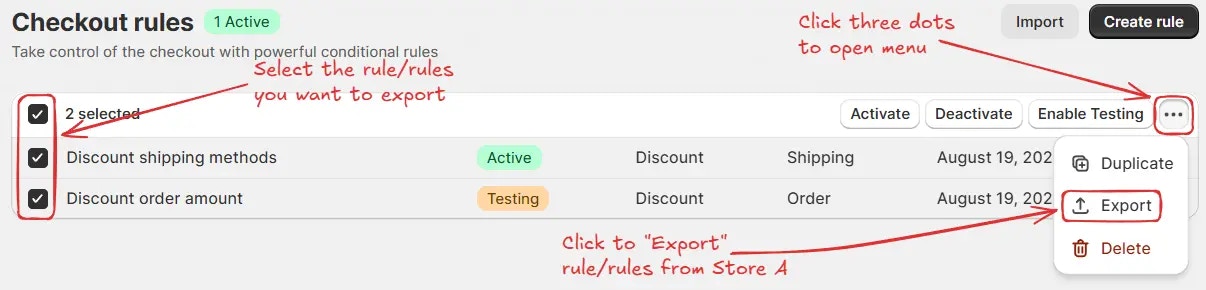
Select one or more rules in your current store and export them. The selected rules can be downloaded as a **ZIP file** to your computer or exported as individual files.

Here are the steps to export rules:

<Steps>
  <Step title="Select rules">
    You can select one or multiple rules that you want to export. Then, click on the three dots and select **"Export"**. Then a popup will appear.

    <img src="https://mintcdn.com/storespark/RDyGA09NSLSSmL-r/images/advanced/multi-store-support/export-rules.webp?fit=max&auto=format&n=RDyGA09NSLSSmL-r&q=85&s=284ff91d754a0c35149fb29e3f0a358f" alt="Export Rules" width="1206" height="290" data-path="images/advanced/multi-store-support/export-rules.webp" />

    Alternatively, you can export a single rule by opening the rule, clicking **"More actions"**, and then selecting **"Export"** to export that rule individually.

    <img src="https://mintcdn.com/storespark/RDyGA09NSLSSmL-r/images/advanced/multi-store-support/single-rule-export.webp?fit=max&auto=format&n=RDyGA09NSLSSmL-r&q=85&s=9aa54e8145a0de9deb12e12081a3766f" alt="Single Rule Export" width="1226" height="229" data-path="images/advanced/multi-store-support/single-rule-export.webp" />
  </Step>

  <Step title="Choose export format">
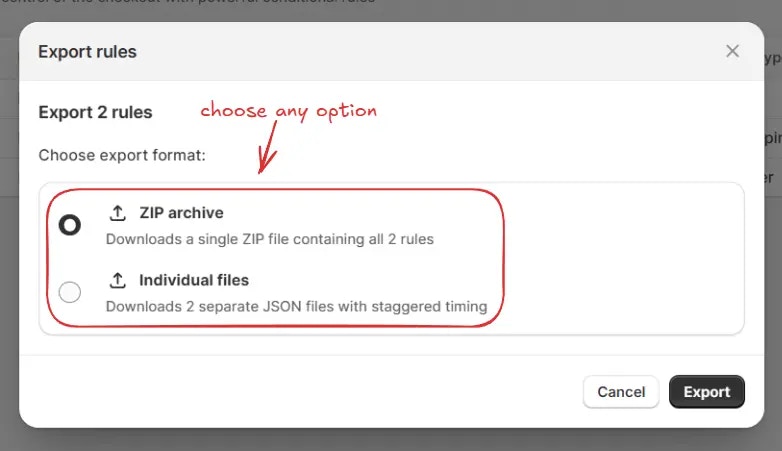
    In the popup, choose one of the following options:

    * **ZIP archive** (Downloads a single ZIP file containing all the selected rules)
    * **Individual files** (Downloads each selected rule as a separate JSON file with staggered timing)

    <img src="https://mintcdn.com/storespark/RDyGA09NSLSSmL-r/images/advanced/multi-store-support/choose-export-format.webp?fit=max&auto=format&n=RDyGA09NSLSSmL-r&q=85&s=678cf818f0b5f650f2919d43c9046c39" alt="Choose Export Format" width="782" height="451" data-path="images/advanced/multi-store-support/choose-export-format.webp" />
  </Step>

  <Step title="Complete export">
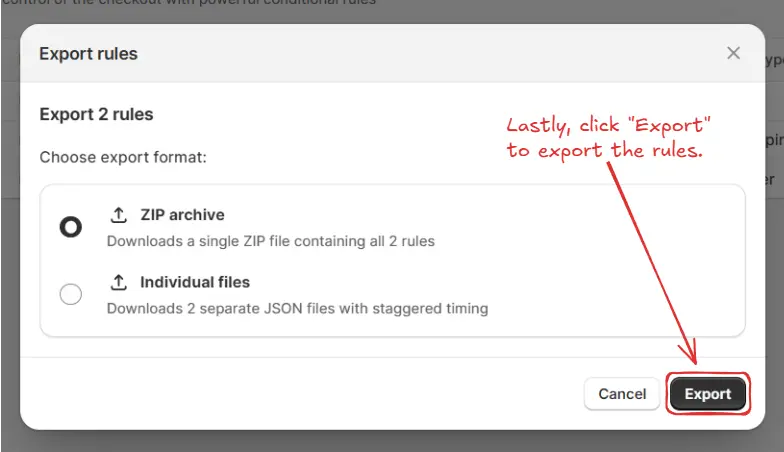
    Lastly, click "Export" to export the rules.

    <img src="https://mintcdn.com/storespark/RDyGA09NSLSSmL-r/images/advanced/multi-store-support/complete-export.webp?fit=max&auto=format&n=RDyGA09NSLSSmL-r&q=85&s=e7724a9d84b3158f795322599b78d1b8" alt="Complete Export" width="784" height="452" data-path="images/advanced/multi-store-support/complete-export.webp" />
  </Step>
</Steps>

### Import rules

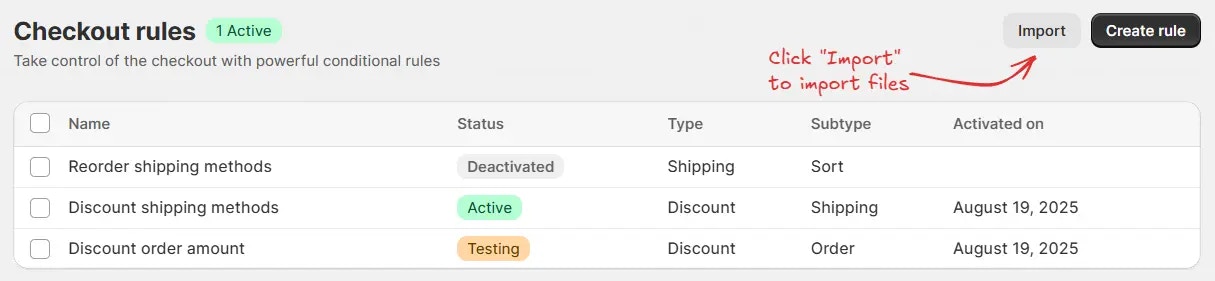
Open another Shopify store, go to the import option, and upload the previously exported **ZIP file** or individual rule JSON files. All the rules inside the ZIP or the selected JSON files will be added to the new store.

Here are the steps to import rules:

<Steps>
  <Step title="Click Import button">
    Click the **"Import"** button. Then a popup will appear.

    <img src="https://mintcdn.com/storespark/RDyGA09NSLSSmL-r/images/advanced/multi-store-support/click-import-button.webp?fit=max&auto=format&n=RDyGA09NSLSSmL-r&q=85&s=2ba135ee57c477111046664052289e6e" alt="Click Import button" width="1215" height="281" data-path="images/advanced/multi-store-support/click-import-button.webp" />
  </Step>

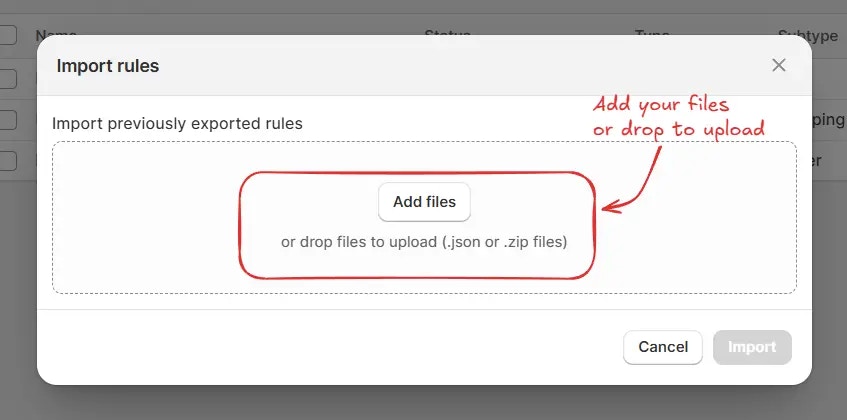
  <Step title="Add files or drop files to upload">
    In the popup, add your files or drag and drop them (for example, `Rename payment methods-besure-export.json`).

    <img src="https://mintcdn.com/storespark/RDyGA09NSLSSmL-r/images/advanced/multi-store-support/add-files-or-drop-files-to-upload.webp?fit=max&auto=format&n=RDyGA09NSLSSmL-r&q=85&s=6598c81d7a807bd069e3a51a773941c9" alt="Add files or drop files to upload" width="847" height="420" data-path="images/advanced/multi-store-support/add-files-or-drop-files-to-upload.webp" />
  </Step>

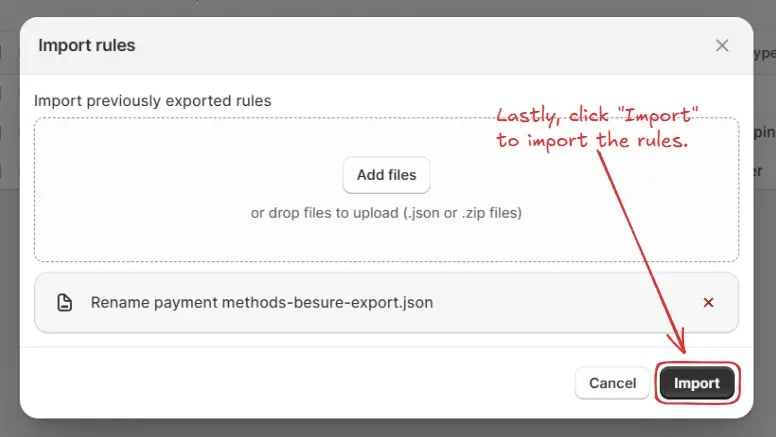
  <Step title="Complete import">
    Lastly, click the **"Import"** button in the popup to import the rules into the store.

    <img src="https://mintcdn.com/storespark/RDyGA09NSLSSmL-r/images/advanced/multi-store-support/complete-import.webp?fit=max&auto=format&n=RDyGA09NSLSSmL-r&q=85&s=e1a8c4bb4ac25012657d5895a466e0ee" alt="Complete Import" width="776" height="437" data-path="images/advanced/multi-store-support/complete-import.webp" />
  </Step>
</Steps>

## Example use case

Let’s say you manage two Shopify stores:

* **Store A** → already has discount rules for different customer groups.
* **Store B** → needs the same discount rules.

Instead of recreating the rules from scratch in **Store B**, you can:

<Steps>
  <Step title="Export rules from Store A">
    Export the rules from <strong>Store A</strong> as a ZIP file.

    <img src="https://mintcdn.com/storespark/RDyGA09NSLSSmL-r/images/advanced/multi-store-support/export-rules.webp?fit=max&auto=format&n=RDyGA09NSLSSmL-r&q=85&s=284ff91d754a0c35149fb29e3f0a358f" alt="Export From Store A" width="1206" height="290" data-path="images/advanced/multi-store-support/export-rules.webp" />
  </Step>

  <Step title="Import rules into Store B">
    Import that ZIP file into <strong>Store B</strong>.

    <img src="https://mintcdn.com/storespark/RDyGA09NSLSSmL-r/images/advanced/multi-store-support/import-into-store-b.webp?fit=max&auto=format&n=RDyGA09NSLSSmL-r&q=85&s=ca32723e6767e726949fb3dc830a5653" alt="Import Into Store B" width="1209" height="232" data-path="images/advanced/multi-store-support/import-into-store-b.webp" />
  </Step>
</Steps>

The rules will be imported and ready for use immediately.