> ## Documentation Index
> Fetch the complete documentation index at: https://docs.checkoutrules.com/llms.txt
> Use this file to discover all available pages before exploring further.
# Introduction
> Understand what condition sets are and how to use them.
## What is a condition set?
A **condition set** is a group of predefined conditions that can be used to control when a checkout rule should run. These conditions are available in the [When](/guides/en/get-started/concepts#conditions-the-“when”) selector in the rule setup.
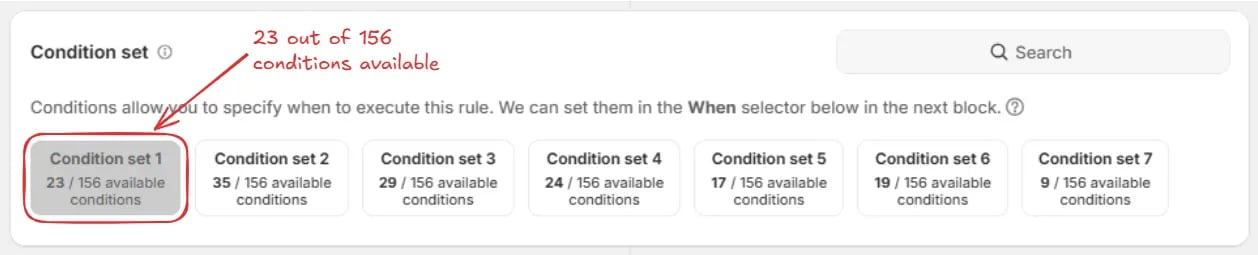
Each condition set lists how many conditions are available within it compared to the total. For example, **Condition set 1** `23 / 156` means there are 23 conditions available in Condition set 1 out of 156 total conditions. Here, 156 is the total number of conditions available in all condition sets.
You can hover over the condition set name to see all the conditions available
in that condition set. You can also search for a condition using the search
bar to find a specific condition.
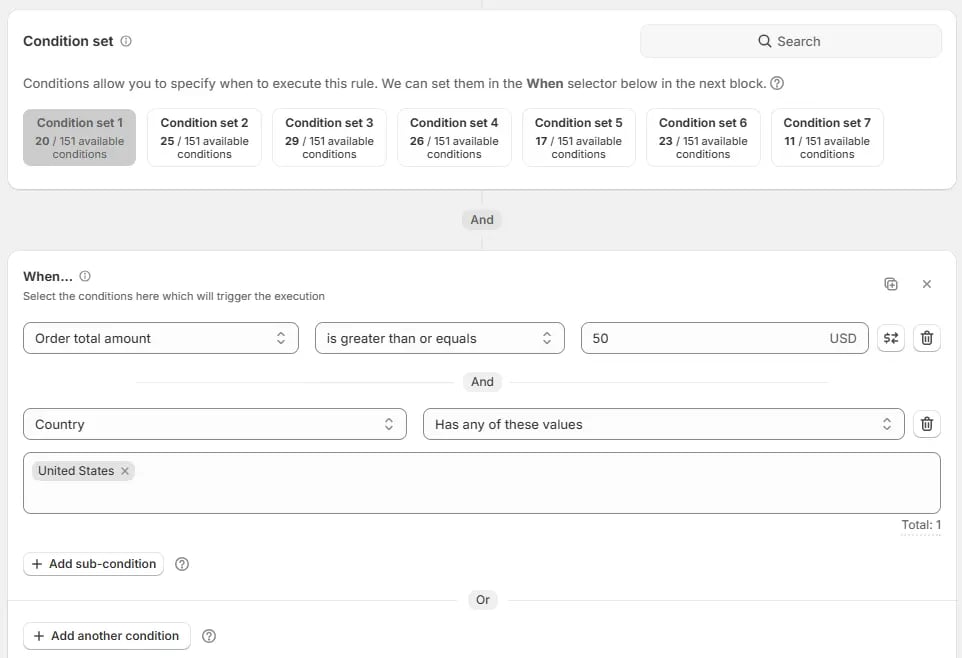
Conditions from a selected **condition set** appear in the [When](/guides/en/get-started/concepts#conditions-the-“when”) selector below inside the rule [block](/guides/en/get-started/concepts#block). You can switch between condition sets and then open the condition selector in the "When" selector below, to see the conditions available in the selected condition set.
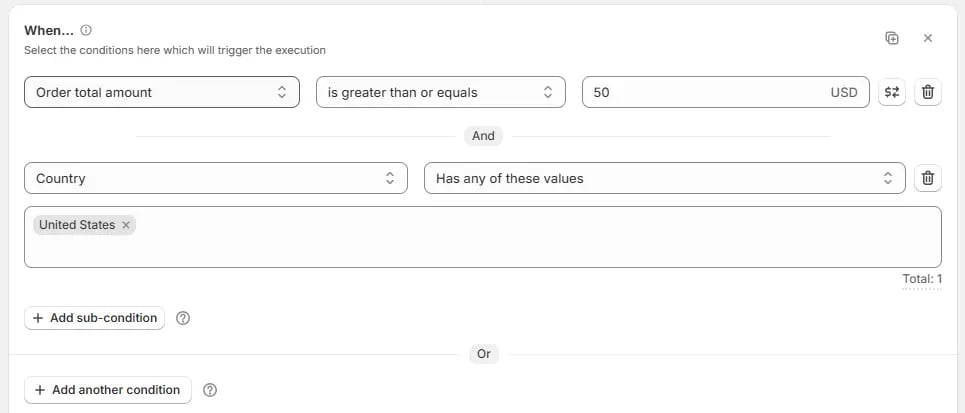
> For example, here we are using the default **Condition set 1**, which has 23 conditions available, setting the rule to run if the **Order total** is greater than or equal to **\$50** and the **Shipping country** is the **United States**, since these conditions are available in Condition set 1.
## Why condition sets exist
Not all conditions can be placed in the same rule due to size limits, so we provide different condition sets. Each set contains a portion of the total available conditions. You can create multiple rules with different condition sets to control your customers checkout experience.
## How to use condition sets
### Choose condition set
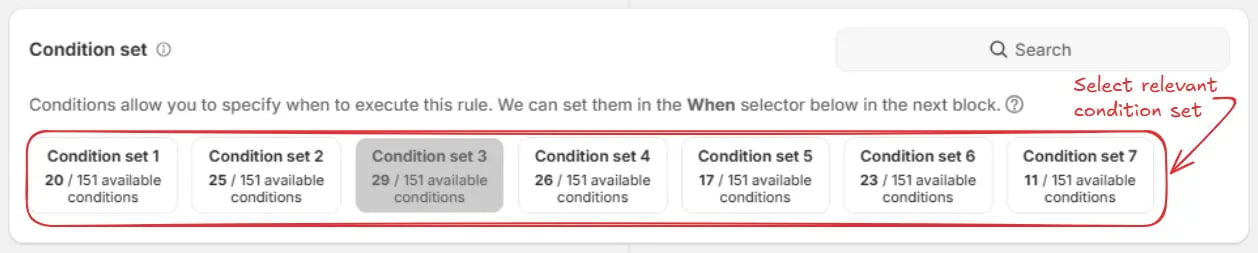
In the Condition Sets section, click on the desired condition set. If you are unsure which condition set to choose, you can search for a condition using the search bar or hover over the condition set name to see all the conditions available in that condition set.
> For example, here we selected *Condition set 3*.
#### Search for a Condition (Optional)
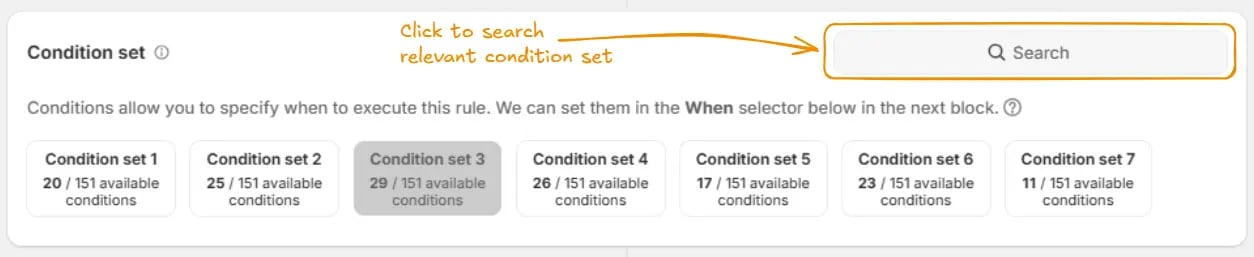
You can click on the search in the top right corner of the condition sets section.
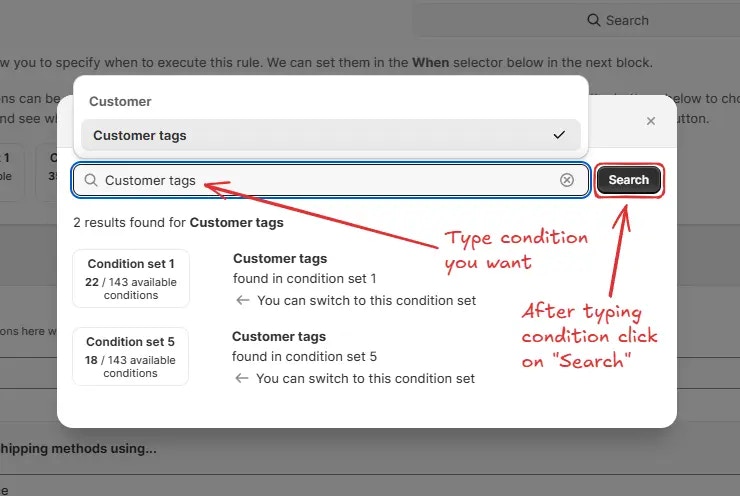
Then, type the condition you want into the search bar and click the search button.
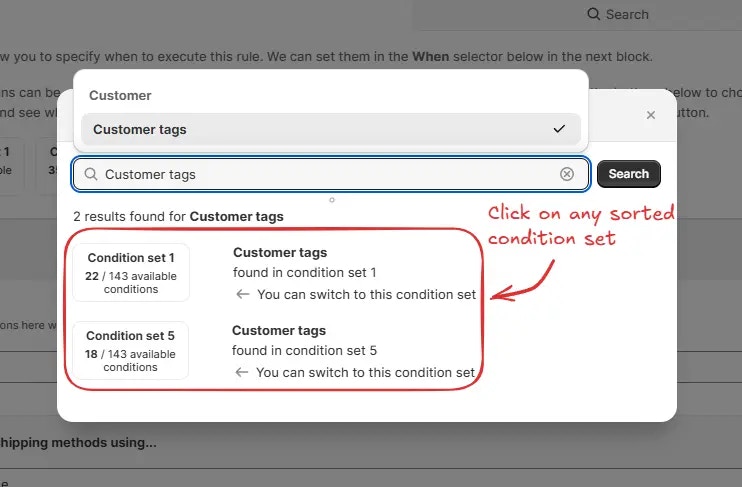
Then, the matching condition sets will be displayed. Click on the condition set that contains your desired condition to switch to it.
### Select conditions
Once you have selected the condition set, choose the condition(s) you want to apply. You can add multiple conditions within the same set to create powerful rules.
### Example usage
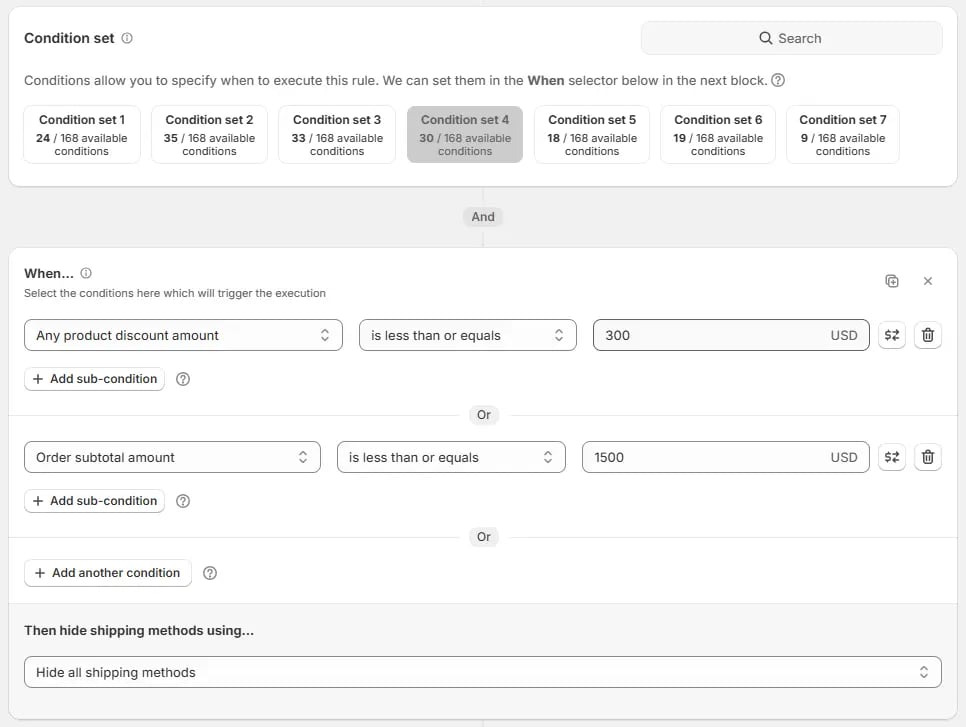
For example, here we are using *Condition set 4*, setting the rule to hide shipping methods if ***Any product discount amount*** is *less than or equal* to *300* or the ***Order subtotal amount*** is *less than or equal* to *1500*. Then, hide all shipping methods.
## Tips for using condition sets
* Start by identifying the main condition that triggers your rule.
* Check different sets to see where your needed condition is located.
* Use the search function to find the condition set more easily.
By using condition sets effectively, you can precisely control **when** your checkout rules are executed, improving your store’s flexibility and checkout experience.
 ## Why condition sets exist
Not all conditions can be placed in the same rule due to size limits, so we provide different condition sets. Each set contains a portion of the total available conditions. You can create multiple rules with different condition sets to control your customers checkout experience.
## How to use condition sets
### Choose condition set
In the Condition Sets section, click on the desired condition set. If you are unsure which condition set to choose, you can search for a condition using the search bar or hover over the condition set name to see all the conditions available in that condition set.
> For example, here we selected *Condition set 3*.
## Why condition sets exist
Not all conditions can be placed in the same rule due to size limits, so we provide different condition sets. Each set contains a portion of the total available conditions. You can create multiple rules with different condition sets to control your customers checkout experience.
## How to use condition sets
### Choose condition set
In the Condition Sets section, click on the desired condition set. If you are unsure which condition set to choose, you can search for a condition using the search bar or hover over the condition set name to see all the conditions available in that condition set.
> For example, here we selected *Condition set 3*.
 #### Search for a Condition (Optional)
You can click on the search in the top right corner of the condition sets section.
#### Search for a Condition (Optional)
You can click on the search in the top right corner of the condition sets section.
 Then, type the condition you want into the search bar and click the search button.
 Then, the matching condition sets will be displayed. Click on the condition set that contains your desired condition to switch to it.
 ### Select conditions
Once you have selected the condition set, choose the condition(s) you want to apply. You can add multiple conditions within the same set to create powerful rules.
### Select conditions
Once you have selected the condition set, choose the condition(s) you want to apply. You can add multiple conditions within the same set to create powerful rules.
 ### Example usage
For example, here we are using *Condition set 4*, setting the rule to hide shipping methods if ***Any product discount amount*** is *less than or equal* to *300* or the ***Order subtotal amount*** is *less than or equal* to *1500*. Then, hide all shipping methods.
### Example usage
For example, here we are using *Condition set 4*, setting the rule to hide shipping methods if ***Any product discount amount*** is *less than or equal* to *300* or the ***Order subtotal amount*** is *less than or equal* to *1500*. Then, hide all shipping methods.
 ## Tips for using condition sets
* Start by identifying the main condition that triggers your rule.
* Check different sets to see where your needed condition is located.
* Use the search function to find the condition set more easily.
By using condition sets effectively, you can precisely control **when** your checkout rules are executed, improving your store’s flexibility and checkout experience.
## Tips for using condition sets
* Start by identifying the main condition that triggers your rule.
* Check different sets to see where your needed condition is located.
* Use the search function to find the condition set more easily.
By using condition sets effectively, you can precisely control **when** your checkout rules are executed, improving your store’s flexibility and checkout experience.