> ## Documentation Index
> Fetch the complete documentation index at: https://docs.checkoutrules.com/llms.txt
> Use this file to discover all available pages before exploring further.
# Discount shipping methods
> Discount shipping rates based on the given conditions.
## Rule overview
This rule allows you to discount shipping rates at the checkout based on defined conditions. You can apply percentage, fixed amount off, subtotal percentage, set fixed price, or set all shipping free, etc. using criteria like shipping address, customer tags, product tags, etc.
Using this rule you can create a discount code, or create an automatic discount. If the rule creates a discount code, then customer can use the discount code at the checkout to get the discount. Otherwise, if automatic discount is selected, then the rule can apply a discount automatically to the selected shipping methods based on the configured conditions.
## Supported operations
| Operation | Behavior |
| ----------------------------------- | ------------------------------------------------------------------------------------------------- |
| **Percentage** | Applies a percentage discount to selected shipping method(s). |
| **Fixed amount off** | Applies a fixed currency amount discount to selected shipping method(s). |
| **Set fixed price** | Sets each selected shipping method to a target fixed price. |
| **Set all shipping free** | Makes all shipping methods free. |
| **Subtotal percentage** | Discount amount is `order subtotal × percent / 100`, then applied to selected shipping method(s). |
| **Fixed price subtotal percentage** | Sets each selected shipping method price to `order subtotal × percent / 100`. |
## Sample configuration
The following steps show how to create and configure a **Discount Shipping Methods** rule using the app.
### Create a new rule
From your [Shopify admin](/guides/en/get-started/installation#go-to-the-app), open the app. In the sidebar, go to the [Rules](/guides/en/get-started/quickstart#create-a-sample-rule) section and click *"Create Rule"*.
Then, you’ll be redirected to the **Select checkout rule type screen**. Choose *category "Shipping" → select checkout rule type "Discount shipping methods" → click “Select Rule”*.
Next, you’ll land on the **Create new shipping discount rule** screen, where you can configure your rule.
### Rule configuration
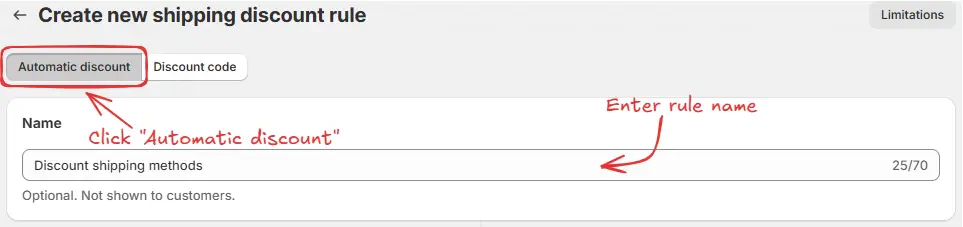
To configure the rule, first optionally add a name such as "Discount shipping methods" to describe what it does if you want to apply an **"Automatic discount"**.
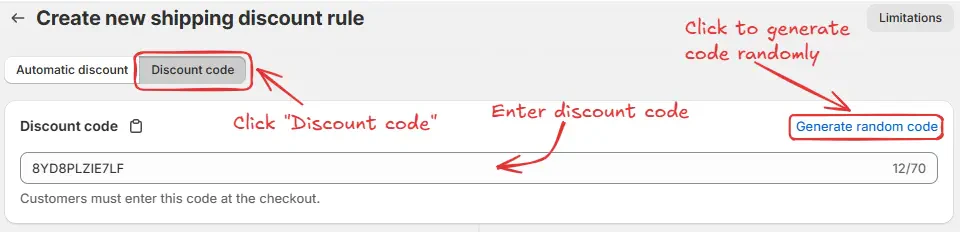
Or, if you prefer to apply the discount using a discount code, click **"Discount code"** and enter your desired code or generate one randomly by clicking **"Generate random code"**.
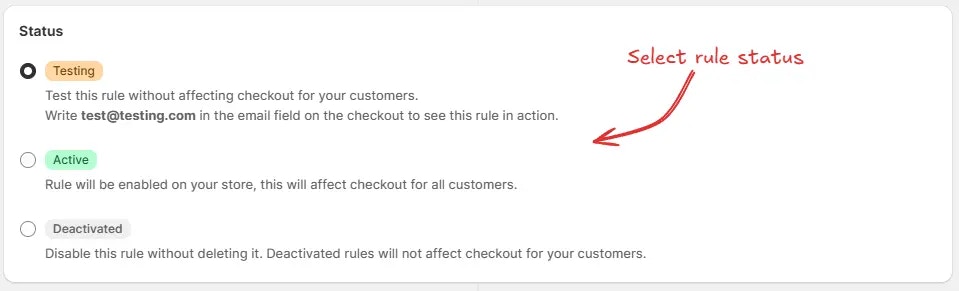
Next, on the same screen, select the rule [status](/guides/en/get-started/concepts#status): Testing, Active, or Deactivated. Here we are going to choose **Testing** status, so we can quickly test the rule without affecting the checkout for actual customers.
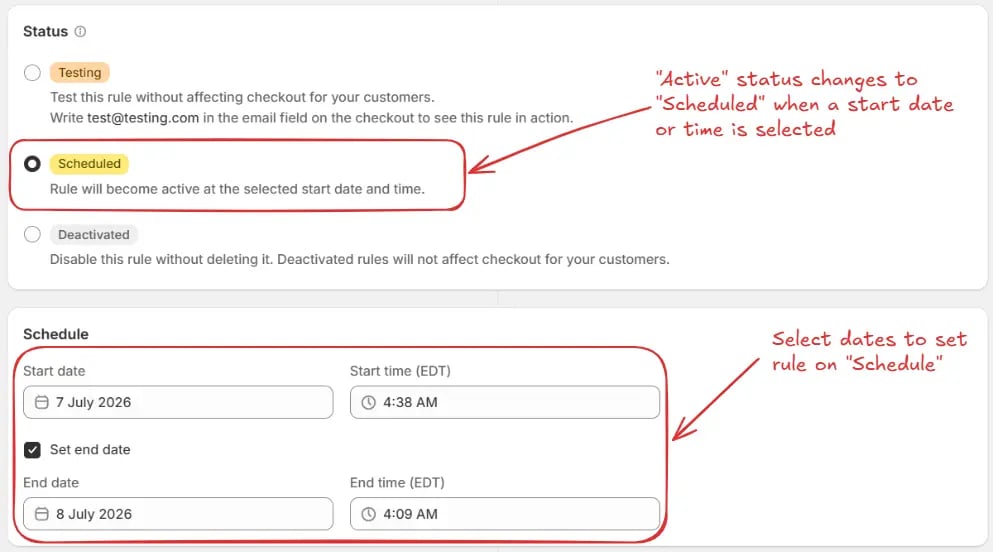
As part of the [status](/guides/en/get-started/concepts#status) settings, the optional [schedule](/guides/en/get-started/concepts#schedule) section lets you control when an active rule starts and stops. Select a **Start date** and **Start time** for when the rule should begin. Optionally, check **Set end date** to choose an end date and time when the rule should automatically deactivate.
> If you select schedule dates while the rule is set to **Active**, the status becomes **Scheduled** instead of Active. The rule will run from the start date and time until the end date and time, if one is set.
For this example, we are not using a schedule and are keeping **Testing**
status.
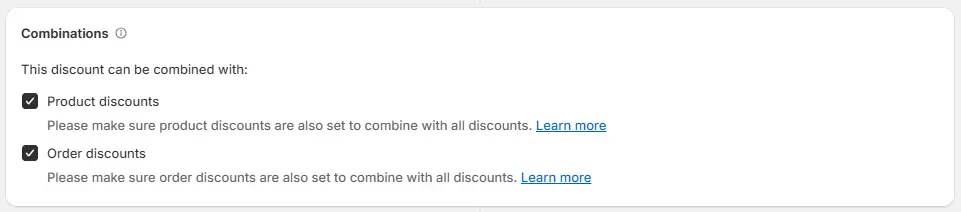
Next, on the same screen, configure the [Combinations](/guides/en/get-started/concepts#combinations) settings to control how this shipping discount interacts with other discounts. You can choose to allow it to combine with:
* **Product discounts** – This lets the shipping discount be used alongside any product level discounts. Make sure product discounts are also configured to combine with shipping discounts.
* **Order discounts** – This enables the shipping discount to work together with overall order level discounts. Make sure order discounts are also set to allow combinations with shipping discounts.
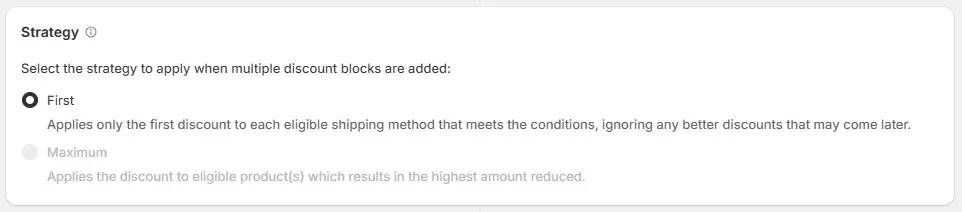
Next, on the same screen, configure the [Strategy](/guides/en/get-started/concepts#strategy) settings to control how the system handles multiple discount blocks. Currently, only **First** is available and selected by default. This option applies only the first discount that meets the conditions, ignoring any better discounts that may come later.
Next, on the same screen, select the relevant [condition set](/guides/en/get-started/concepts#condition-set), [condition](/guides/en/get-started/concepts#conditions-when), and [action](/guides/en/get-started/concepts#action-what).
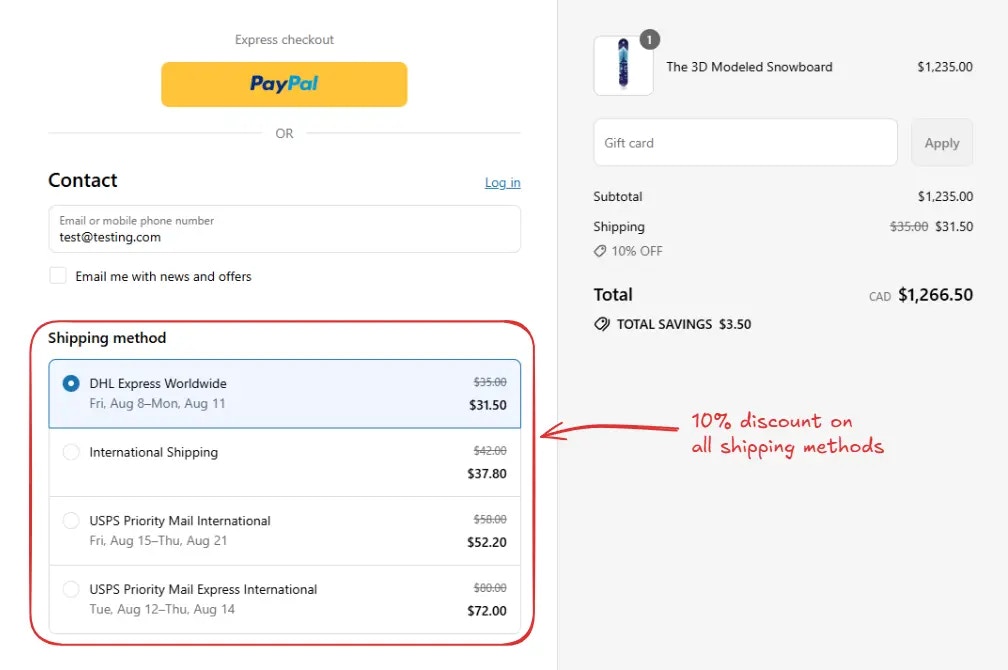
> As an example, we will choose the default **Condition set 1**. Then, we will configure the rule to run **Always** and configure it to apply a **10% discount** to all shipping methods using the **Percentage** option. The discount message **"10% OFF"** will be shown to customers at checkout.
In the Action section, you can choose to apply the discount using **Percentage, Fixed amount off, Subtotal percentage, Set fixed price, Set all shipping free, or Fixed price subtotal percentage** based on your requirements.
You can also choose multiple options to apply the discount. The available options are:
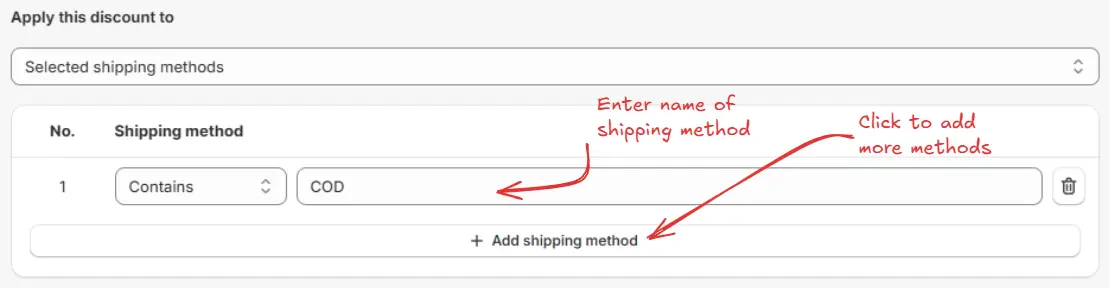
* **Selected shipping methods**\
Apply the discount only to specific shipping methods by entering the **names** of the shipping methods you want to include.
* **All shipping methods**\
Apply the discount to all available shipping methods.
* **Highest price shipping method**\
Apply the discount to the shipping method with the highest price.
* **Lowest price shipping method**\
Apply the discount to the shipping method with the lowest price.
* **Shipping method with price**\
Apply the discount based on an entered amount, with an option to target shipping methods that are either greater than or lower than the specified value.
Next, on the same screen, in the [Subscription Deliveries](/guides/en/get-started/concepts#subscription-deliveries) section, for subscription shipping products, you can choose to limit the shipping discount to the first delivery only, limit the shipping discount to the first delivery and make the recurring deliveries free, or limit the shipping discount to the first delivery and make all recurring deliveries free.
The **Subscription Deliveries** section options apply only to shipping
products that have a subscription. For normal (non-subscription) product
deliveries, you do not need to select any option. The default setting will
work as expected.
Next, on the same screen, in the [Maximum Discount Uses](/guides/en/get-started/concepts#maximum-discount-uses) section, you can optionally enable a usage limit for the discount code, limit it to one use per customer, or apply both if a discount code is selected.
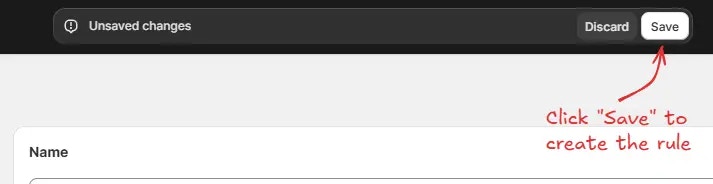
Finally, click the Save button at the top to create and save your rule.
## Test the rule
Since, the rule is set to testing status, we have to use `test@testing.com` as the email, instead of the actual email, to run the rule at checkout.
The image below shows the checkout page before the testing email
address was used. Please note all shipping options have not yet been
discounted.
After setting the email, the checkout rule runs and applies the configured shipping discount. We can verify that the **10% discount** is visible for the selected shipping methods at checkout, as shown below.
## Activate the rule
Once testing is done, we can activate the rule, so it can start making changes to the checkout for actual customers. Only activated rules can make changes to the checkout for all customers.
Click on **Rules** in the sidebar to view all rules. Select the rule you want to activate, then click the **Activate** button to activate it.
Rule activation is only available on paid plans. If you haven't upgraded your
plan yet, follow the instructions
[here](/guides/en/get-started/installation#upgrade-your-plan) to upgrade.
## Limitations
* This rule is incompatible with draft-order-based checkout and apps that use draft-order checkout.
* If checkout URL contains `.../checkouts/do/...`, `do` means draft order and this rule will not run.
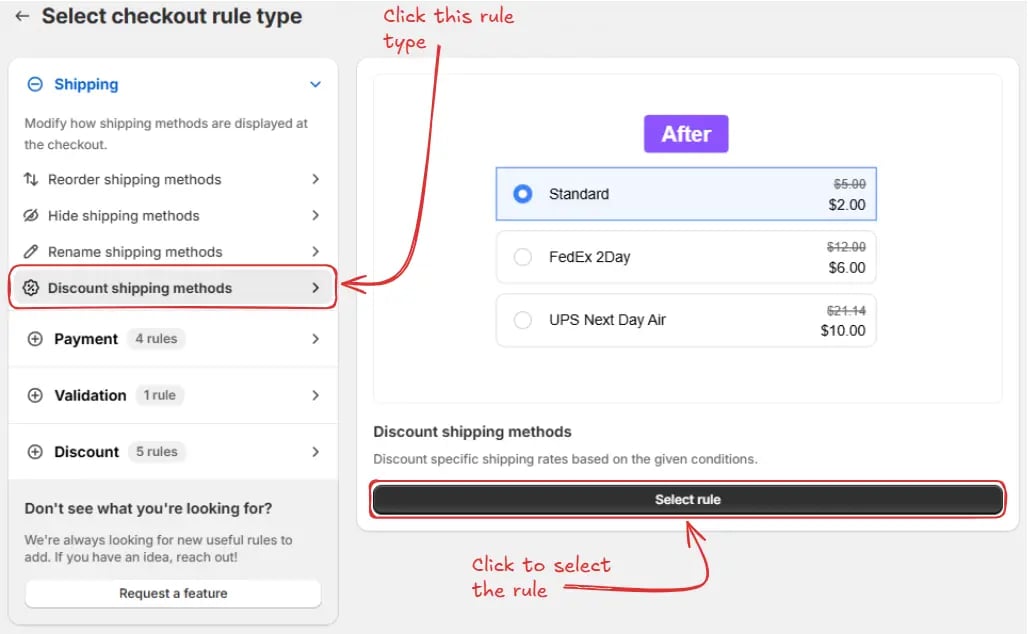 Next, you’ll land on the **Create new shipping discount rule** screen, where you can configure your rule.
### Rule configuration
To configure the rule, first optionally add a name such as "Discount shipping methods" to describe what it does if you want to apply an **"Automatic discount"**.
Next, you’ll land on the **Create new shipping discount rule** screen, where you can configure your rule.
### Rule configuration
To configure the rule, first optionally add a name such as "Discount shipping methods" to describe what it does if you want to apply an **"Automatic discount"**.
 Or, if you prefer to apply the discount using a discount code, click **"Discount code"** and enter your desired code or generate one randomly by clicking **"Generate random code"**.
 Next, on the same screen, select the rule [status](/guides/en/get-started/concepts#status): Testing, Active, or Deactivated. Here we are going to choose **Testing** status, so we can quickly test the rule without affecting the checkout for actual customers.
 As part of the [status](/guides/en/get-started/concepts#status) settings, the optional [schedule](/guides/en/get-started/concepts#schedule) section lets you control when an active rule starts and stops. Select a **Start date** and **Start time** for when the rule should begin. Optionally, check **Set end date** to choose an end date and time when the rule should automatically deactivate.
> If you select schedule dates while the rule is set to **Active**, the status becomes **Scheduled** instead of Active. The rule will run from the start date and time until the end date and time, if one is set.
As part of the [status](/guides/en/get-started/concepts#status) settings, the optional [schedule](/guides/en/get-started/concepts#schedule) section lets you control when an active rule starts and stops. Select a **Start date** and **Start time** for when the rule should begin. Optionally, check **Set end date** to choose an end date and time when the rule should automatically deactivate.
> If you select schedule dates while the rule is set to **Active**, the status becomes **Scheduled** instead of Active. The rule will run from the start date and time until the end date and time, if one is set.
 Next, on the same screen, configure the [Strategy](/guides/en/get-started/concepts#strategy) settings to control how the system handles multiple discount blocks. Currently, only **First** is available and selected by default. This option applies only the first discount that meets the conditions, ignoring any better discounts that may come later.
 Next, on the same screen, select the relevant [condition set](/guides/en/get-started/concepts#condition-set), [condition](/guides/en/get-started/concepts#conditions-when), and [action](/guides/en/get-started/concepts#action-what).
> As an example, we will choose the default **Condition set 1**. Then, we will configure the rule to run **Always** and configure it to apply a **10% discount** to all shipping methods using the **Percentage** option. The discount message **"10% OFF"** will be shown to customers at checkout.
Next, on the same screen, select the relevant [condition set](/guides/en/get-started/concepts#condition-set), [condition](/guides/en/get-started/concepts#conditions-when), and [action](/guides/en/get-started/concepts#action-what).
> As an example, we will choose the default **Condition set 1**. Then, we will configure the rule to run **Always** and configure it to apply a **10% discount** to all shipping methods using the **Percentage** option. The discount message **"10% OFF"** will be shown to customers at checkout.
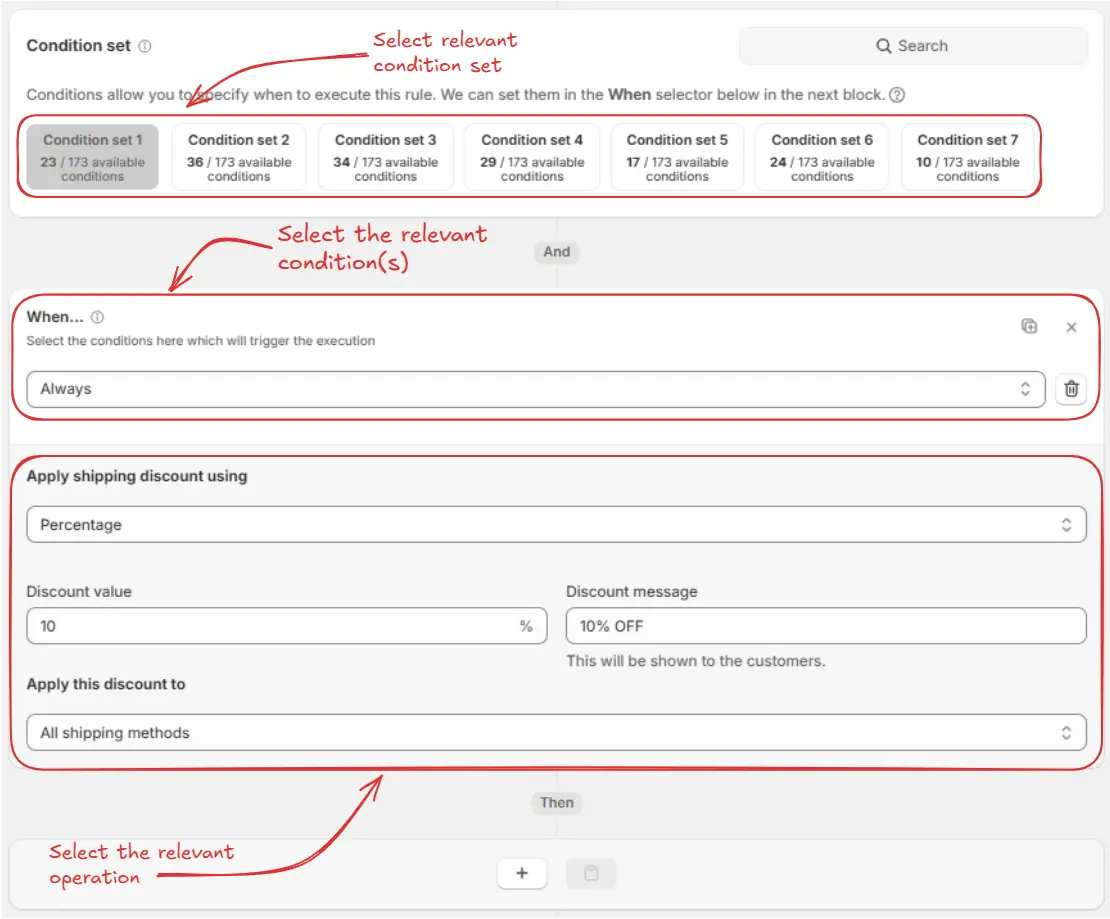 In the Action section, you can choose to apply the discount using **Percentage, Fixed amount off, Subtotal percentage, Set fixed price, Set all shipping free, or Fixed price subtotal percentage** based on your requirements.
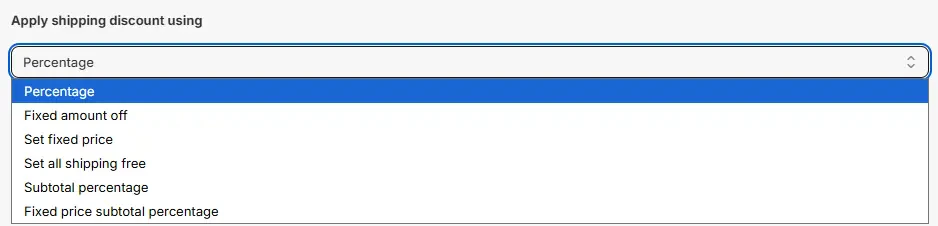 You can also choose multiple options to apply the discount. The available options are:
* **Selected shipping methods**\
Apply the discount only to specific shipping methods by entering the **names** of the shipping methods you want to include.
You can also choose multiple options to apply the discount. The available options are:
* **Selected shipping methods**\
Apply the discount only to specific shipping methods by entering the **names** of the shipping methods you want to include.
 * **All shipping methods**\
Apply the discount to all available shipping methods.
* **All shipping methods**\
Apply the discount to all available shipping methods.
 * **Highest price shipping method**\
Apply the discount to the shipping method with the highest price.
* **Highest price shipping method**\
Apply the discount to the shipping method with the highest price.
 * **Lowest price shipping method**\
Apply the discount to the shipping method with the lowest price.
* **Lowest price shipping method**\
Apply the discount to the shipping method with the lowest price.
 * **Shipping method with price**\
Apply the discount based on an entered amount, with an option to target shipping methods that are either greater than or lower than the specified value.
* **Shipping method with price**\
Apply the discount based on an entered amount, with an option to target shipping methods that are either greater than or lower than the specified value.
 Next, on the same screen, in the [Subscription Deliveries](/guides/en/get-started/concepts#subscription-deliveries) section, for subscription shipping products, you can choose to limit the shipping discount to the first delivery only, limit the shipping discount to the first delivery and make the recurring deliveries free, or limit the shipping discount to the first delivery and make all recurring deliveries free.
 Next, on the same screen, in the [Maximum Discount Uses](/guides/en/get-started/concepts#maximum-discount-uses) section, you can optionally enable a usage limit for the discount code, limit it to one use per customer, or apply both if a discount code is selected.
 Finally, click the Save button at the top to create and save your rule.
 ## Test the rule
Since, the rule is set to testing status, we have to use `test@testing.com` as the email, instead of the actual email, to run the rule at checkout.
## Test the rule
Since, the rule is set to testing status, we have to use `test@testing.com` as the email, instead of the actual email, to run the rule at checkout.
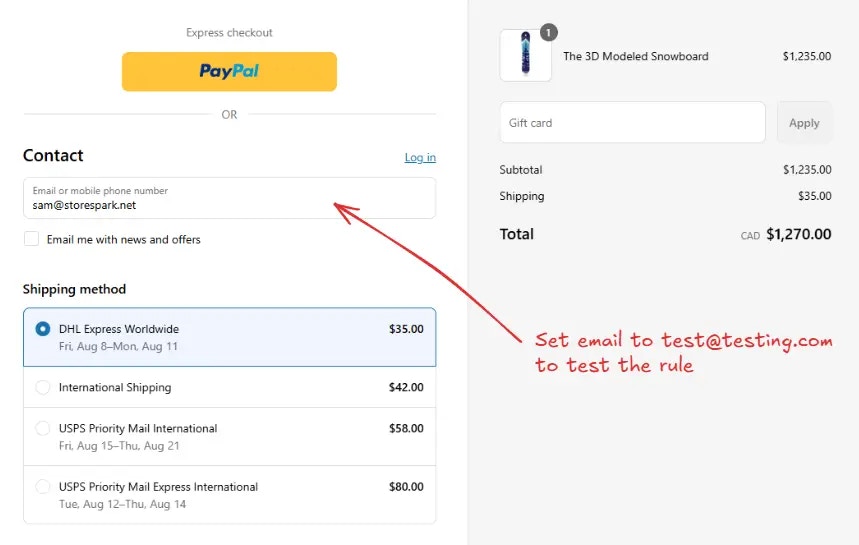 After setting the email, the checkout rule runs and applies the configured shipping discount. We can verify that the **10% discount** is visible for the selected shipping methods at checkout, as shown below.
 ## Activate the rule
Once testing is done, we can activate the rule, so it can start making changes to the checkout for actual customers. Only activated rules can make changes to the checkout for all customers.
Click on **Rules** in the sidebar to view all rules. Select the rule you want to activate, then click the **Activate** button to activate it.
## Activate the rule
Once testing is done, we can activate the rule, so it can start making changes to the checkout for actual customers. Only activated rules can make changes to the checkout for all customers.
Click on **Rules** in the sidebar to view all rules. Select the rule you want to activate, then click the **Activate** button to activate it.
 ## Limitations
* This rule is incompatible with draft-order-based checkout and apps that use draft-order checkout.
* If checkout URL contains `.../checkouts/do/...`, `do` means draft order and this rule will not run.
## Limitations
* This rule is incompatible with draft-order-based checkout and apps that use draft-order checkout.
* If checkout URL contains `.../checkouts/do/...`, `do` means draft order and this rule will not run.