> ## Documentation Index
> Fetch the complete documentation index at: https://docs.checkoutrules.com/llms.txt
> Use this file to discover all available pages before exploring further.
# Reject discount codes
> Do not allow certain discount codes based on the given conditions.
## Rule overview
This rule allows you to reject certain discount codes at checkout based on the defined conditions. You can block specific discount codes from being applied using criteria such as order total amount, customer tags, shipping address, product tags, etc.
When a customer enters a discount code that matches the configured conditions, the rule prevents the code from being applied and shows a custom rejection message at checkout. This helps enforce discount policies, protect margins, and prevent discount codes from being used in situations where they should not apply.
## Sample configuration
The following steps show how to create and configure a **Reject discount codes** rule using the app.
### Create a new rule
From your [Shopify admin](/guides/en/get-started/installation#go-to-the-app), open the app. In the sidebar, go to the [Rules](/guides/en/get-started/quickstart#create-a-sample-rule) section and click *"Create Rule"*.
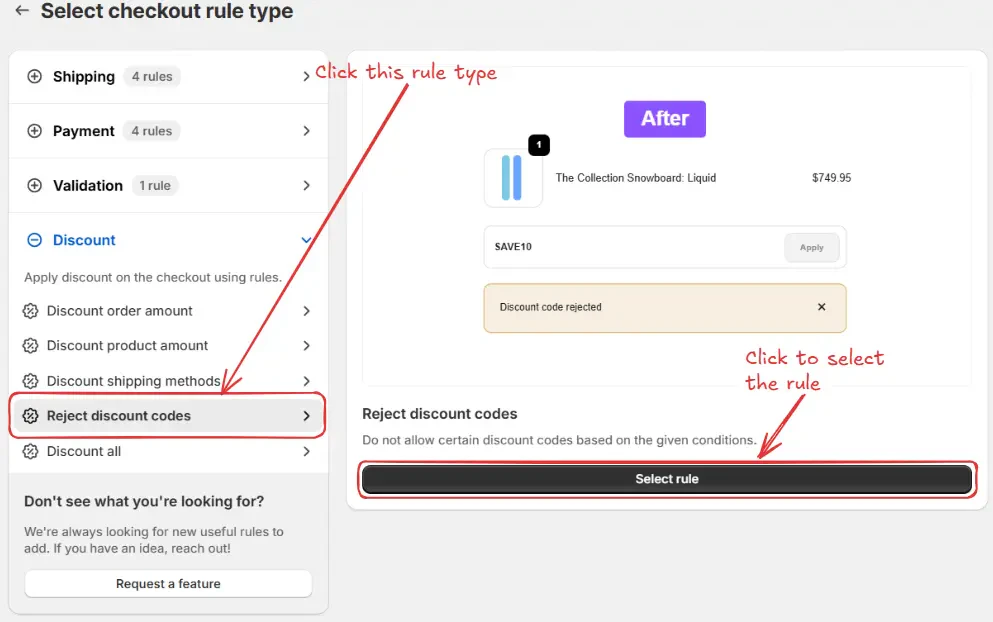
Then, You’ll be redirected to the **Select checkout rule type screen**. Choose *category "Discount" → select checkout rule type "Reject discount codes" → click “Select Rule”*.
Next, you’ll land on the **Create new order discount rule** screen, where you can configure your rule.
### Rule configuration
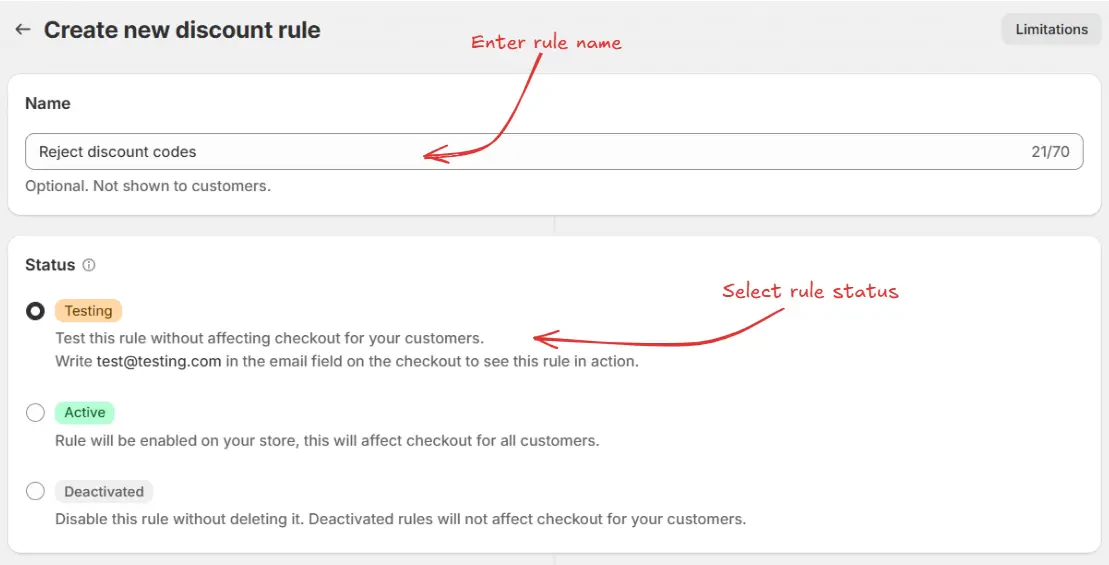
To configure the rule, first optionally we can add a name such as "Reject discount codes" to describe what it does. Then, select the rule [status](/guides/en/get-started/concepts#status): Testing, Active, Deactivated, or Scheduled.
Here, as an example, we are going to choose **Testing** status, so we can quickly test the rule without affecting the checkout for actual customers.
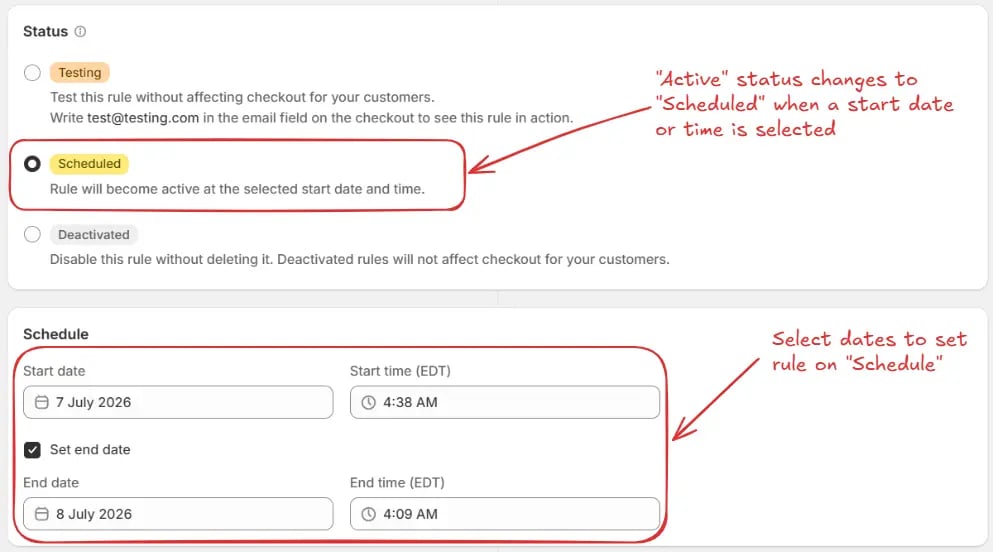
As part of the [status](/guides/en/get-started/concepts#status) settings, the optional [schedule](/guides/en/get-started/concepts#schedule) section lets you control when an active rule starts and stops. Select a **Start date** and **Start time** for when the rule should begin. Optionally, check **Set end date** to choose an end date and time when the rule should automatically deactivate.
> If you select schedule dates while the rule is set to **Active**, the status becomes **Scheduled** instead of Active. The rule will run from the start date and time until the end date and time, if one is set.
For this example, we are not using a schedule and are keeping **Testing**
status.
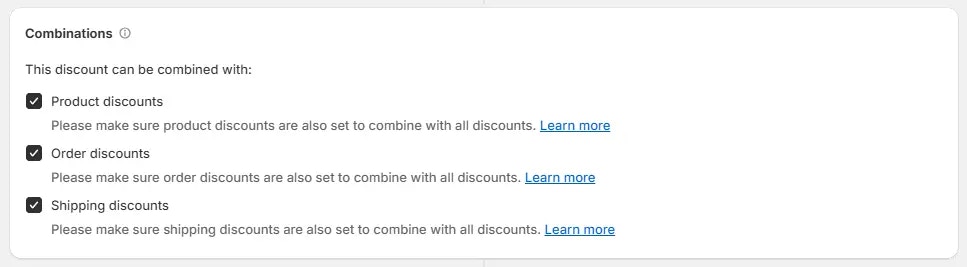
Next, on the same screen, configure the [Combinations](/guides/en/get-started/concepts#combinations) settings to control how this order discount interacts with **other discounts**. You can choose to allow it to combine with:
* **Product discounts** – This lets the order discount be used alongside any product level discounts. Make sure product discounts are also configured to combine with order discounts.
* **Order discounts** – This enables multiple order level discounts to be applied together. Ensure the other order discounts are also set to combine with order discounts.
* **Shipping discounts** – This allows the order discount to be used together with shipping level discounts. Confirm that shipping discounts are also set to combine with order discounts.
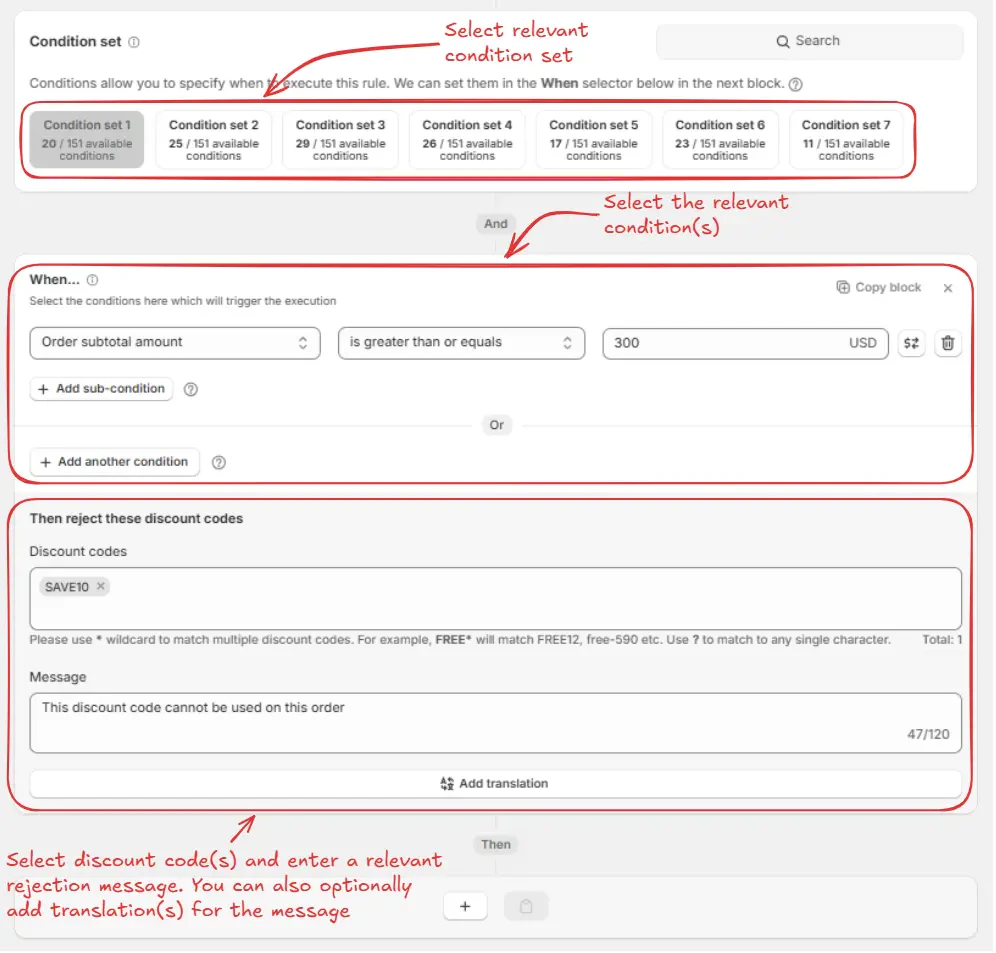
Next, on the same screen, select the relevant [condition set](/guides/en/get-started/concepts#condition-set), [condition](/guides/en/get-started/concepts#conditions-when), and [action](/guides/en/get-started/concepts#action-what).
> As an example, here we are going to choose the default condition set 1. Then we are setting the rule to run when **Order subtotal amount** is **greater than or equal to** **300**, and configuring it to reject the discount code **"SAVE10"**. The rejection message **"This discount code cannot be used on this order"** will be shown to customers at checkout when they try to apply it.
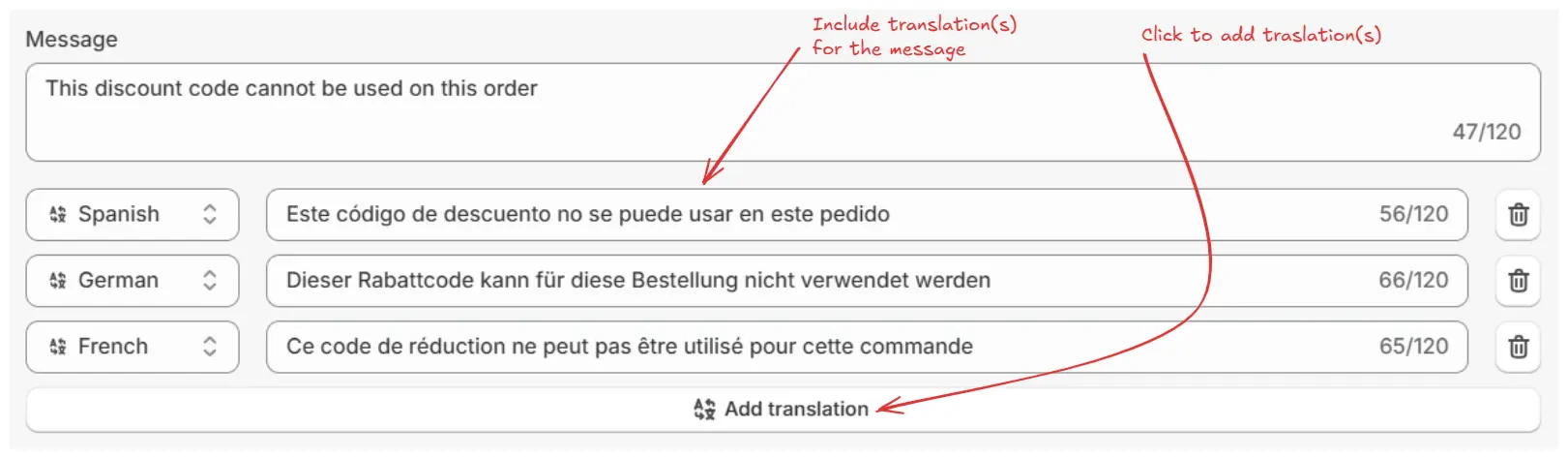
Also, you can optionally add translations for the rejection message in multiple languages by clicking **Add translation** and then selecting the languages you want to translate the message into. The main rejection message becomes the **default message** and is shown at checkout when no translation matches the customer’s language.
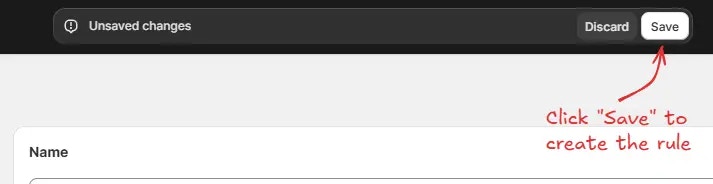
Finally, click the Save button at the top to create and save your rule.
## Test the rule
Since, the rule is set to testing status, we have to use `test@testing.com` as the email, instead of the actual email, to run the rule at checkout.
The image below shows the checkout page before the testing email
address was used. Please note the discount code has not been rejected yet.
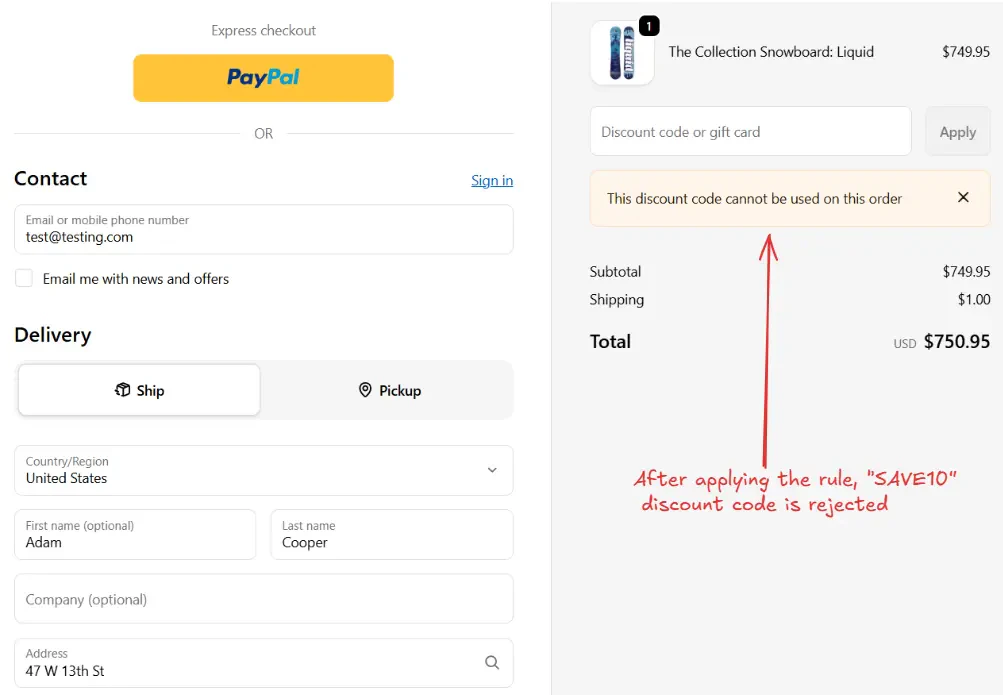
After setting the email, the checkout rule runs when the **Order subtotal amount** is **greater than or equal to** **300** and rejects the discount code **"SAVE10"** when the customer tries to apply it. We can verify that the rejection message **"This discount code cannot be used on this order"** is visible at checkout, as shown below.
## Activate the rule
Once testing is done, we can activate the rule, so it can start making changes to the checkout for actual customers. Only activated rules can make changes to the checkout for all customers.
Click on **Rules** in the sidebar to view all rules. Select the rule you want to activate, then click the **Activate** button to activate it.
Rule activation is only available on paid plans. If you haven't upgraded your
plan yet, follow the instructions
[here](/guides/en/get-started/installation#upgrade-your-plan) to upgrade.
## Limitations
* This rule is incompatible with draft-order-based checkout and apps that use draft-order checkout.
* If your checkout URL includes `.../checkouts/do/...`, `do` stands for draft order. This rule won't run on that checkout.
 Next, you’ll land on the **Create new order discount rule** screen, where you can configure your rule.
### Rule configuration
To configure the rule, first optionally we can add a name such as "Reject discount codes" to describe what it does. Then, select the rule [status](/guides/en/get-started/concepts#status): Testing, Active, Deactivated, or Scheduled.
Here, as an example, we are going to choose **Testing** status, so we can quickly test the rule without affecting the checkout for actual customers.
Next, you’ll land on the **Create new order discount rule** screen, where you can configure your rule.
### Rule configuration
To configure the rule, first optionally we can add a name such as "Reject discount codes" to describe what it does. Then, select the rule [status](/guides/en/get-started/concepts#status): Testing, Active, Deactivated, or Scheduled.
Here, as an example, we are going to choose **Testing** status, so we can quickly test the rule without affecting the checkout for actual customers.
 As part of the [status](/guides/en/get-started/concepts#status) settings, the optional [schedule](/guides/en/get-started/concepts#schedule) section lets you control when an active rule starts and stops. Select a **Start date** and **Start time** for when the rule should begin. Optionally, check **Set end date** to choose an end date and time when the rule should automatically deactivate.
> If you select schedule dates while the rule is set to **Active**, the status becomes **Scheduled** instead of Active. The rule will run from the start date and time until the end date and time, if one is set.
As part of the [status](/guides/en/get-started/concepts#status) settings, the optional [schedule](/guides/en/get-started/concepts#schedule) section lets you control when an active rule starts and stops. Select a **Start date** and **Start time** for when the rule should begin. Optionally, check **Set end date** to choose an end date and time when the rule should automatically deactivate.
> If you select schedule dates while the rule is set to **Active**, the status becomes **Scheduled** instead of Active. The rule will run from the start date and time until the end date and time, if one is set.
 Next, on the same screen, select the relevant [condition set](/guides/en/get-started/concepts#condition-set), [condition](/guides/en/get-started/concepts#conditions-when), and [action](/guides/en/get-started/concepts#action-what).
> As an example, here we are going to choose the default condition set 1. Then we are setting the rule to run when **Order subtotal amount** is **greater than or equal to** **300**, and configuring it to reject the discount code **"SAVE10"**. The rejection message **"This discount code cannot be used on this order"** will be shown to customers at checkout when they try to apply it.
Next, on the same screen, select the relevant [condition set](/guides/en/get-started/concepts#condition-set), [condition](/guides/en/get-started/concepts#conditions-when), and [action](/guides/en/get-started/concepts#action-what).
> As an example, here we are going to choose the default condition set 1. Then we are setting the rule to run when **Order subtotal amount** is **greater than or equal to** **300**, and configuring it to reject the discount code **"SAVE10"**. The rejection message **"This discount code cannot be used on this order"** will be shown to customers at checkout when they try to apply it.
 Also, you can optionally add translations for the rejection message in multiple languages by clicking **Add translation** and then selecting the languages you want to translate the message into. The main rejection message becomes the **default message** and is shown at checkout when no translation matches the customer’s language.
 Finally, click the Save button at the top to create and save your rule.
 ## Test the rule
Since, the rule is set to testing status, we have to use `test@testing.com` as the email, instead of the actual email, to run the rule at checkout.
## Test the rule
Since, the rule is set to testing status, we have to use `test@testing.com` as the email, instead of the actual email, to run the rule at checkout.
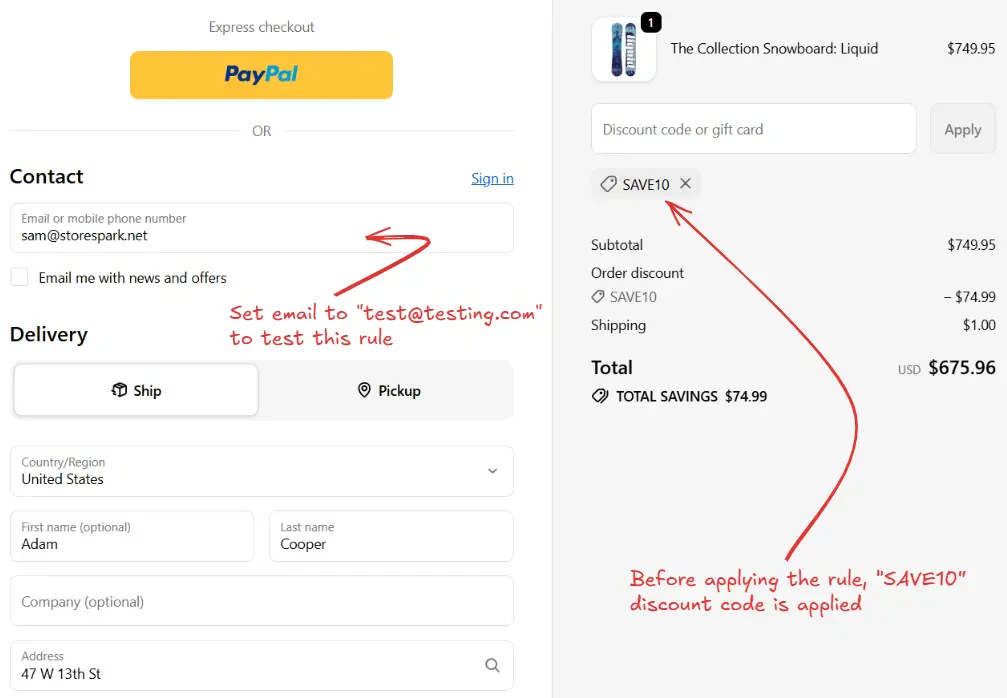 After setting the email, the checkout rule runs when the **Order subtotal amount** is **greater than or equal to** **300** and rejects the discount code **"SAVE10"** when the customer tries to apply it. We can verify that the rejection message **"This discount code cannot be used on this order"** is visible at checkout, as shown below.
 ## Activate the rule
Once testing is done, we can activate the rule, so it can start making changes to the checkout for actual customers. Only activated rules can make changes to the checkout for all customers.
Click on **Rules** in the sidebar to view all rules. Select the rule you want to activate, then click the **Activate** button to activate it.
## Activate the rule
Once testing is done, we can activate the rule, so it can start making changes to the checkout for actual customers. Only activated rules can make changes to the checkout for all customers.
Click on **Rules** in the sidebar to view all rules. Select the rule you want to activate, then click the **Activate** button to activate it.
 ## Limitations
* This rule is incompatible with draft-order-based checkout and apps that use draft-order checkout.
* If your checkout URL includes `.../checkouts/do/...`, `do` stands for draft order. This rule won't run on that checkout.
## Limitations
* This rule is incompatible with draft-order-based checkout and apps that use draft-order checkout.
* If your checkout URL includes `.../checkouts/do/...`, `do` stands for draft order. This rule won't run on that checkout.