> ## Documentation Index
> Fetch the complete documentation index at: https://docs.checkoutrules.com/llms.txt
> Use this file to discover all available pages before exploring further.
# Reorder payment methods
> Rearrange how payment methods are displayed at the checkout under given conditions.
## Rule overview
This rule allows you to change the order in which payment methods appear at checkout. You can prioritize specific payment options based on conditions such as cart total, shipping country, or product tags, etc.
This helps streamline the customer experience by displaying the most preferred or relevant payment methods first.
## Sample configuration
The following steps show how to create and configure a **Reorder Payment Methods** rule using the app.
### Create a new rule
From your [Shopify admin](/guides/en/get-started/installation#go-to-the-app), open the app. In the sidebar, go to the [Rules](/guides/en/get-started/quickstart#create-a-sample-rule) section and click *"Create Rule"*.
Then, You’ll be redirected to the **Select checkout rule type screen**. Choose *category "Payment" → select checkout rule type "Reorder Payment Methods" → click “Select Rule”*.
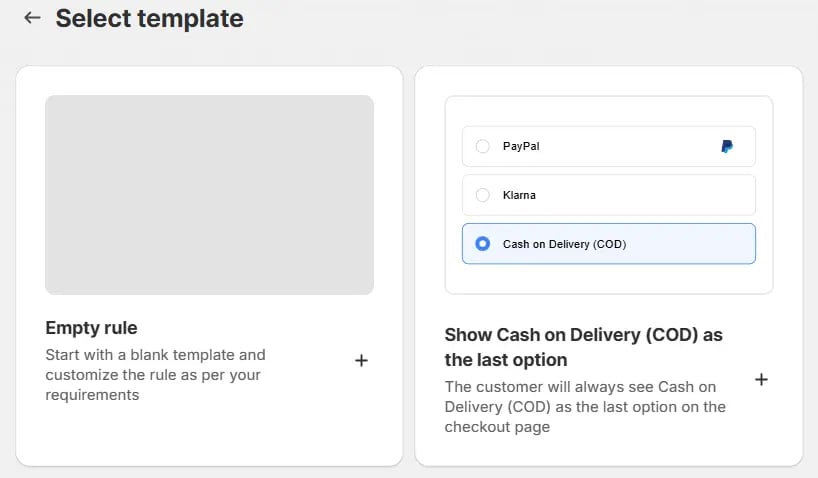
Then, in the **template selection**, choose an option based on your requirements. In most cases, you can choose the empty rule as a starting point and modify it to your needs. Even if you choose a prefilled template, you will be able to modify it later.
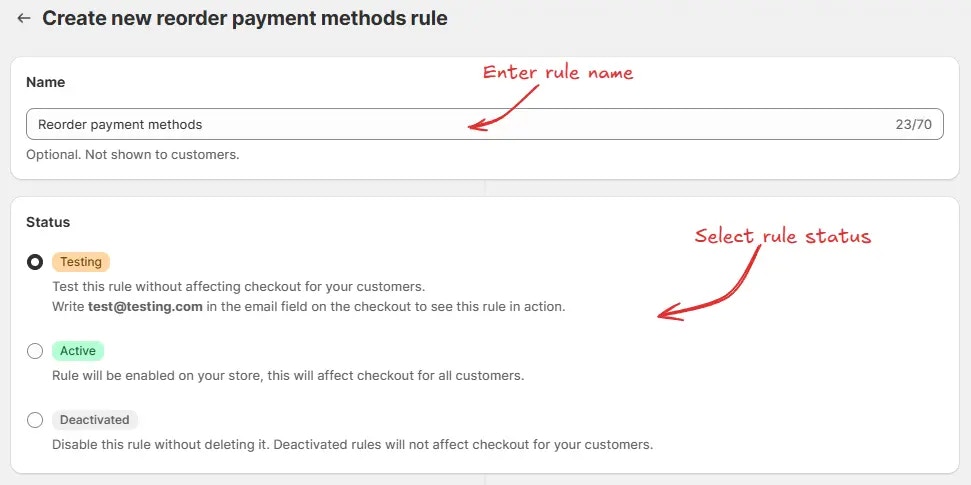
Next, you’ll land on the **Create new reorder payment methods rule** screen, where
you can configure your rule.
### Rule configuration
To configure the rule, first optionally we can add a name such as "Reorder payment methods" to describe what it does. Then, select the rule [status](/guides/en/get-started/concepts#status): Testing, Active, or Deactivated.
Here we are going to choose **Testing** status, so we can quickly test the rule without affecting the checkout for actual customers.
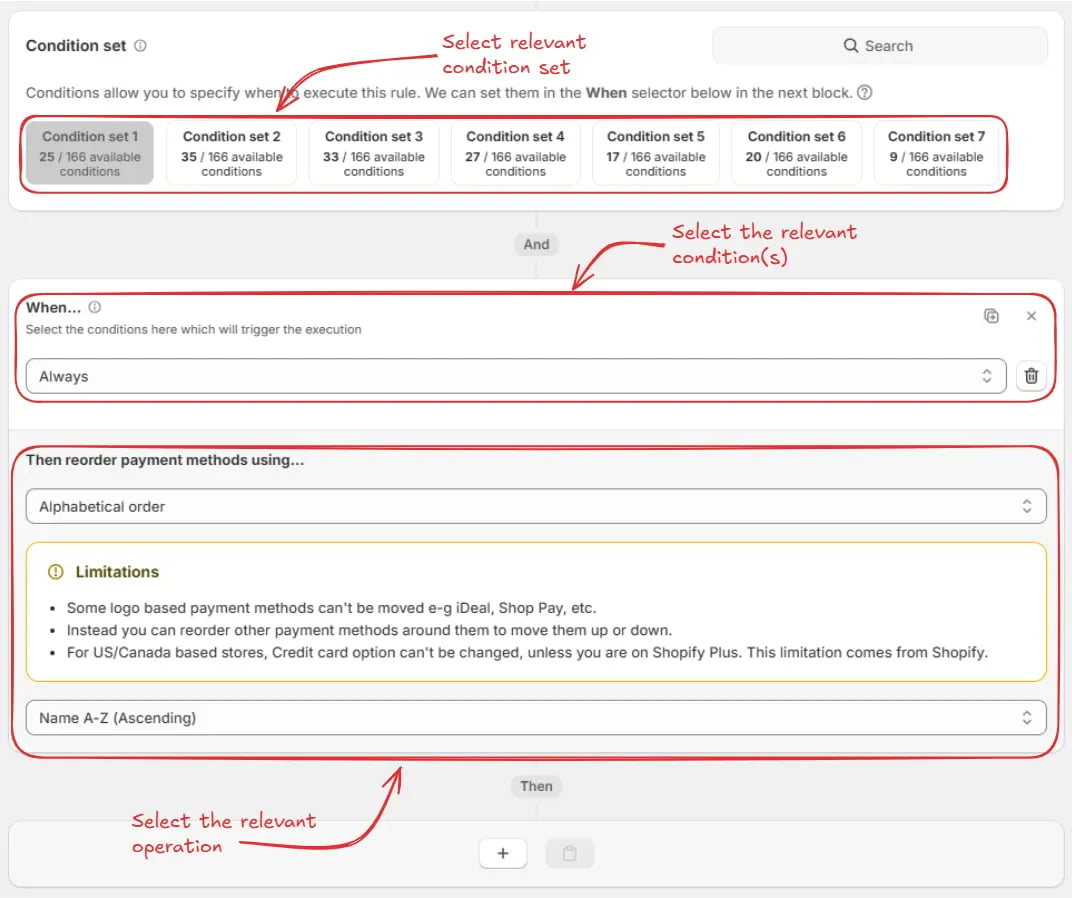
Next, on the same screen, select the relevant [condition set](/guides/en/get-started/concepts#condition-set), [condition](/guides/en/get-started/concepts#conditions-when), and [action](/guides/en/get-started/concepts#action-what).
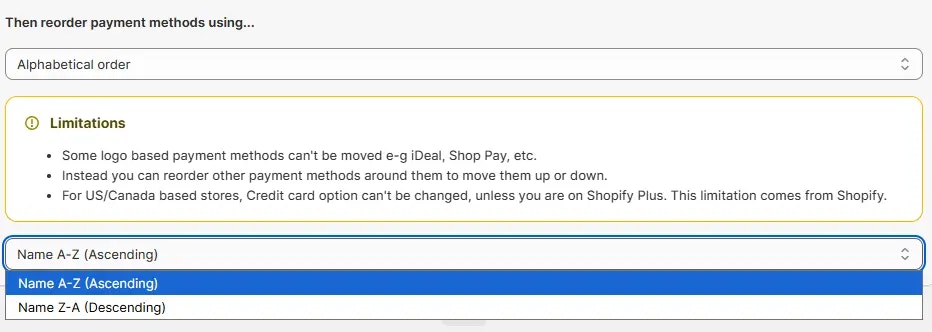
> As an example, we are going to choose the default Condition set 1, set the rule to always run, and select the operation **Alphabetical order** by selecting **Name A to Z (Ascending)** to reorder the payment methods.
In the action section, you have two options to choose from:
* **Alphabetical order** – This allows you to reorder the payment methods alphabetically. You can choose either **Name A-Z (Ascending)** or **Name Z-A (Descending)**.
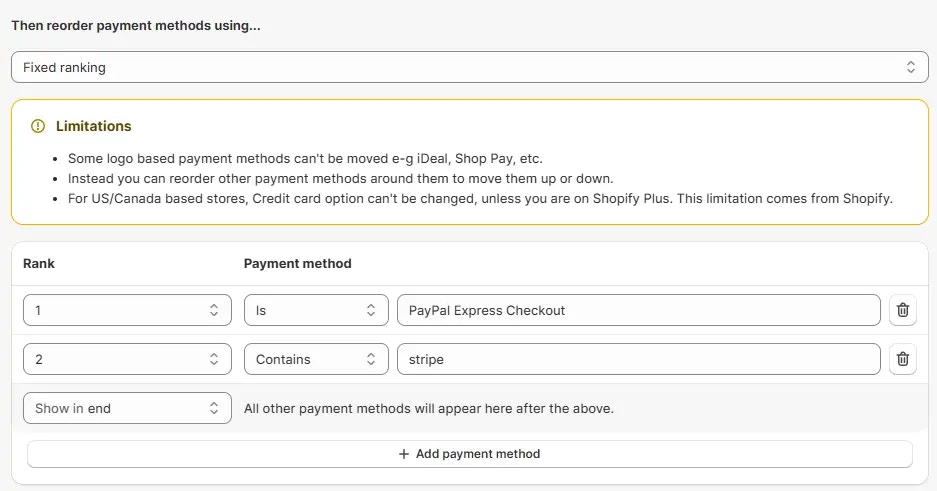
* **Fixed ranking** – This option lets you manually set the order of payment methods by assigning a fixed rank (e.g., 1, 2, 3, etc.) to each method, so you can control exactly which method appears in which **position**.
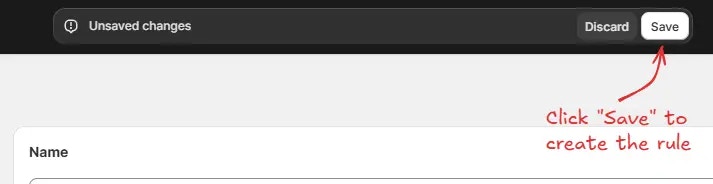
Finally, click the Save button at the top to create and save your rule.
## Test the rule
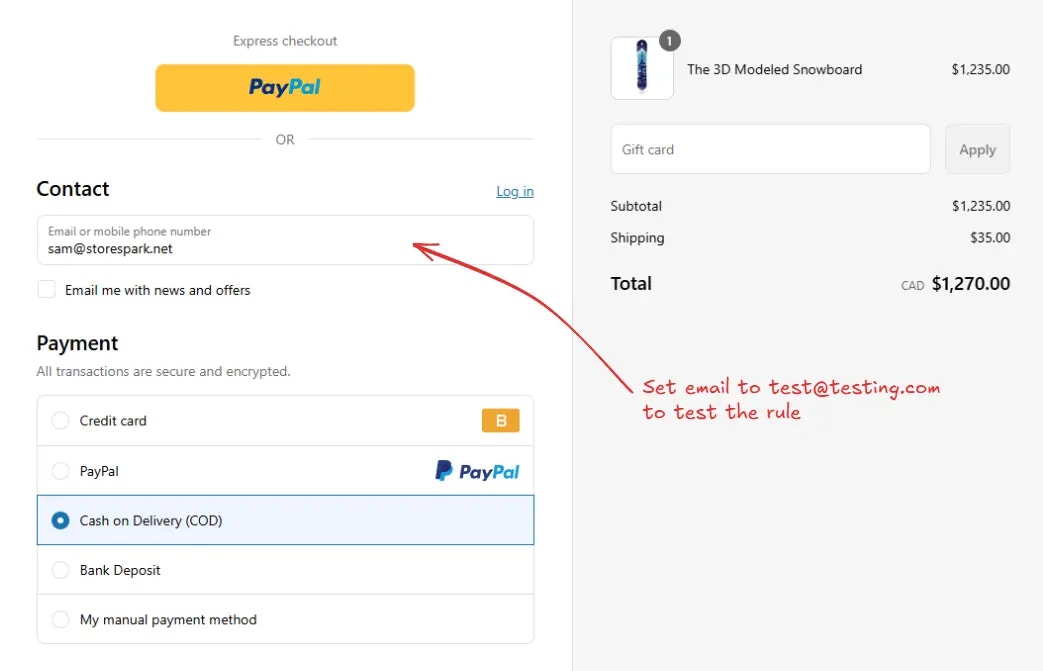
Since, the rule is set to testing status, we have to use `test@testing.com` as the email, instead of the actual email, to run the rule at checkout.
The image below shows the checkout page before the testing email
address was used. Please note the order of the payment methods.
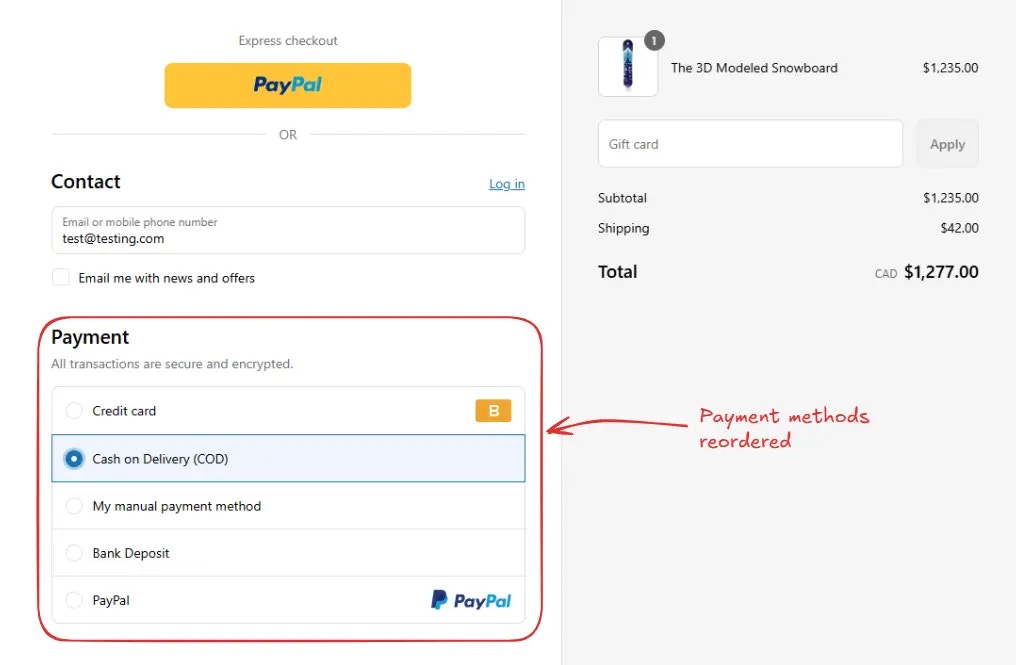
As an example, after setting the email, the checkout rule runs, and the **payment methods are reordered**.
## Setting the default preselected payment method
By default, Shopify will always make the top payment method the default preselected payment method. So, using this rule, you can change the default preselected payment method to any payment method which you want, by making it the top payment method.
To do this, as an example, you can use the **Fixed ranking** option, and set the rank to 1 for the payment method you want to be the default preselected payment method. Please make sure, "All other payment methods will appear here after the above" is set to "Show in end".
Please note, to test this, you will need to activate the rule, and then clear
out the cookies/cache of the browser, so the default preselected payment
method is not your previously selected payment method (Shopify can save this
selection in cache for your browser). Or you can use a different brwoser as
well to see what your customers will see.
## Activate the rule
Once testing is done, we can activate the rule, so it can start making changes to the checkout for actual customers. Only activated rules can make changes to the checkout for all customers.
Click on **Rules** in the sidebar to view all rules. Select the rule you want to activate, then click the **Activate** button to activate it.
Rule activation is only available on paid plans. If you haven't upgraded your
plan yet, follow the instructions
[here](/guides/en/get-started/installation#upgrade-your-plan) to upgrade.
## Limitations
* Some logo-based payment methods can't be moved (e.g., iDeal, Shop Pay, etc.).
* Instead, you can reorder other payment methods around them to move them up or down.
* For US/Canada-based stores, the Credit card option can't be changed unless you are on Shopify Plus. This limitation comes from Shopify.
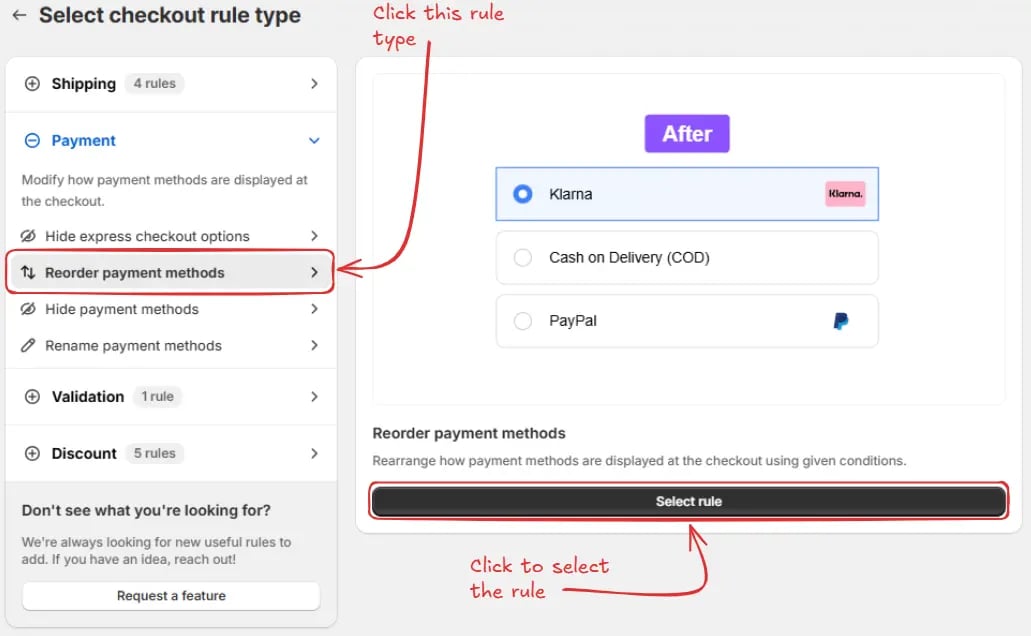 Then, in the **template selection**, choose an option based on your requirements. In most cases, you can choose the empty rule as a starting point and modify it to your needs. Even if you choose a prefilled template, you will be able to modify it later.
 Next, you’ll land on the **Create new reorder payment methods rule** screen, where
you can configure your rule.
### Rule configuration
To configure the rule, first optionally we can add a name such as "Reorder payment methods" to describe what it does. Then, select the rule [status](/guides/en/get-started/concepts#status): Testing, Active, or Deactivated.
Here we are going to choose **Testing** status, so we can quickly test the rule without affecting the checkout for actual customers.
Next, you’ll land on the **Create new reorder payment methods rule** screen, where
you can configure your rule.
### Rule configuration
To configure the rule, first optionally we can add a name such as "Reorder payment methods" to describe what it does. Then, select the rule [status](/guides/en/get-started/concepts#status): Testing, Active, or Deactivated.
Here we are going to choose **Testing** status, so we can quickly test the rule without affecting the checkout for actual customers.
 Next, on the same screen, select the relevant [condition set](/guides/en/get-started/concepts#condition-set), [condition](/guides/en/get-started/concepts#conditions-when), and [action](/guides/en/get-started/concepts#action-what).
> As an example, we are going to choose the default Condition set 1, set the rule to always run, and select the operation **Alphabetical order** by selecting **Name A to Z (Ascending)** to reorder the payment methods.
Next, on the same screen, select the relevant [condition set](/guides/en/get-started/concepts#condition-set), [condition](/guides/en/get-started/concepts#conditions-when), and [action](/guides/en/get-started/concepts#action-what).
> As an example, we are going to choose the default Condition set 1, set the rule to always run, and select the operation **Alphabetical order** by selecting **Name A to Z (Ascending)** to reorder the payment methods.
 In the action section, you have two options to choose from:
* **Alphabetical order** – This allows you to reorder the payment methods alphabetically. You can choose either **Name A-Z (Ascending)** or **Name Z-A (Descending)**.
In the action section, you have two options to choose from:
* **Alphabetical order** – This allows you to reorder the payment methods alphabetically. You can choose either **Name A-Z (Ascending)** or **Name Z-A (Descending)**.
 * **Fixed ranking** – This option lets you manually set the order of payment methods by assigning a fixed rank (e.g., 1, 2, 3, etc.) to each method, so you can control exactly which method appears in which **position**.
 Finally, click the Save button at the top to create and save your rule.
 ## Test the rule
Since, the rule is set to testing status, we have to use `test@testing.com` as the email, instead of the actual email, to run the rule at checkout.
## Test the rule
Since, the rule is set to testing status, we have to use `test@testing.com` as the email, instead of the actual email, to run the rule at checkout.
 As an example, after setting the email, the checkout rule runs, and the **payment methods are reordered**.
 ## Setting the default preselected payment method
By default, Shopify will always make the top payment method the default preselected payment method. So, using this rule, you can change the default preselected payment method to any payment method which you want, by making it the top payment method.
To do this, as an example, you can use the **Fixed ranking** option, and set the rank to 1 for the payment method you want to be the default preselected payment method. Please make sure, "All other payment methods will appear here after the above" is set to "Show in end".
## Setting the default preselected payment method
By default, Shopify will always make the top payment method the default preselected payment method. So, using this rule, you can change the default preselected payment method to any payment method which you want, by making it the top payment method.
To do this, as an example, you can use the **Fixed ranking** option, and set the rank to 1 for the payment method you want to be the default preselected payment method. Please make sure, "All other payment methods will appear here after the above" is set to "Show in end".
 ## Limitations
* Some logo-based payment methods can't be moved (e.g., iDeal, Shop Pay, etc.).
* Instead, you can reorder other payment methods around them to move them up or down.
* For US/Canada-based stores, the Credit card option can't be changed unless you are on Shopify Plus. This limitation comes from Shopify.
## Limitations
* Some logo-based payment methods can't be moved (e.g., iDeal, Shop Pay, etc.).
* Instead, you can reorder other payment methods around them to move them up or down.
* For US/Canada-based stores, the Credit card option can't be changed unless you are on Shopify Plus. This limitation comes from Shopify.