> ## Documentation Index
> Fetch the complete documentation index at: https://docs.checkoutrules.com/llms.txt
> Use this file to discover all available pages before exploring further.
# Reorder shipping methods
> Rearrange how shipping or pickup methods are displayed at the checkout under given conditions.
## Rule overview
This rule allows you to automatically change the order in which shipping methods appear at checkout.
You can prioritize specific shipping options based on conditions like cart total, delivery address, or product tags, etc.
This helps streamline the customer experience by showing the most relevant or cost effective shipping methods first.
## Supported operations
* **Fixed ranking**: manually rank selected methods with **contains / does not contain / is / is not** matching.
* **Shipping price**: sort by price low to high or high to low.
* **Alphabetical order**: sort names A to Z or Z to A.
* **Shipping price + Alphabetical order**: sort by price first and break same-price ties alphabetically in any of the 4 available direction combinations.
* **Delivery type**: reorder by selected delivery types in your chosen order.
For method-name matching in **Fixed ranking**:
* Matching is case-insensitive.
* `*` wildcard is supported in user input (for example: `Standard*`, `*Express*`, `*Pickup`).
* **contains** / **does not contain** use partial matching.
* **is** / **is not** support exact text and wildcard patterns.
* If you add multiple method rows, they are evaluated as OR (any matching row can apply).
## Sample configuration
The following steps show how to create and configure a **Reorder Shipping Methods** rule using the app.
### Create a new rule
From your [Shopify admin](/guides/en/get-started/installation#go-to-the-app), open the app. In the sidebar, go to the [Rules](/guides/en/get-started/quickstart#create-a-sample-rule) section and click *"Create Rule"*.
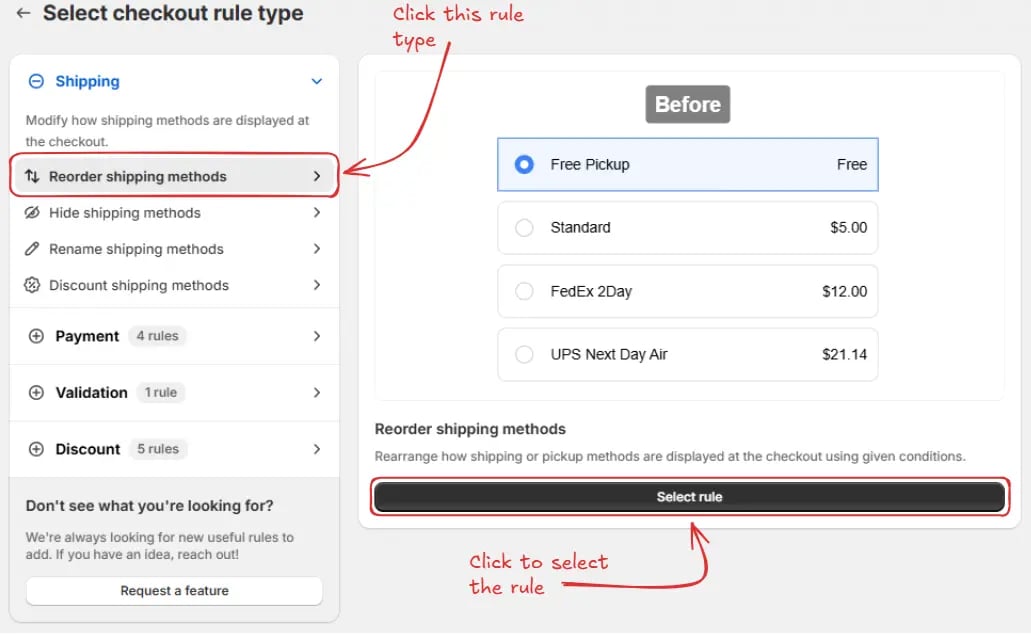
Then, You’ll be redirected to the **Select checkout rule type screen**. Choose *category "Shipping" → select checkout rule type "Reorder Shipping Methods" → click “Select Rule”*.
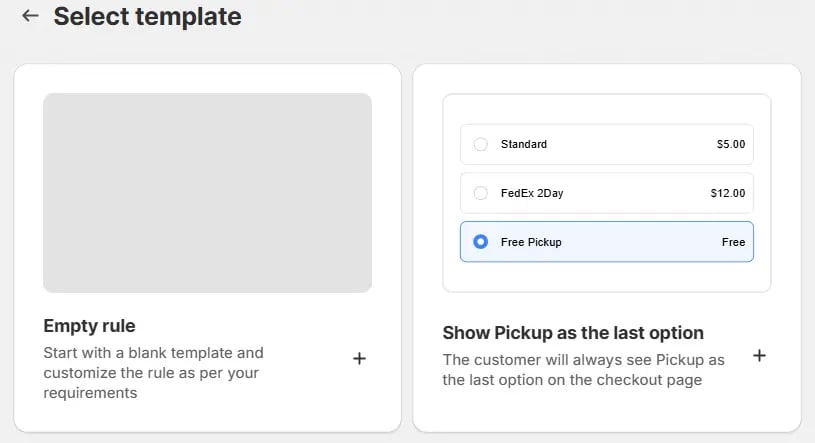
Then, in the **template selection**, choose an option based on your requirements. In most cases, you can choose the empty rule as a starting point and modify it to your needs. Even if you choose a prefilled template, you will be able to modify it later.
Next, you’ll land on the **Create new reorder shipping methods rule** screen,
where you can configure your rule.
### Rule configuration
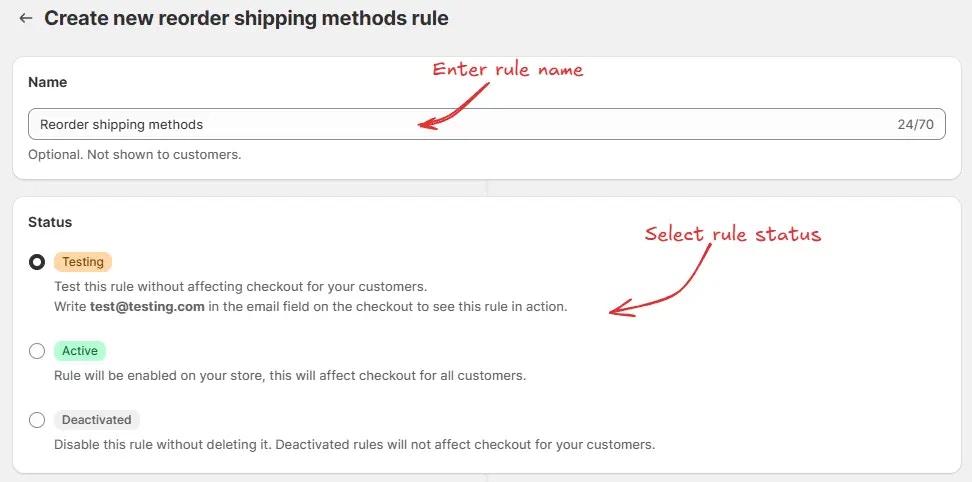
To configure the rule, first optionally we can add a name such as "Reorder shipping methods" to describe what it does. Then, select the rule [status](/guides/en/get-started/concepts#status): Testing, Active, or Deactivated.
Here, as an example, we are going to choose **Testing** status, so we can quickly test the rule without affecting the checkout for actual customers.
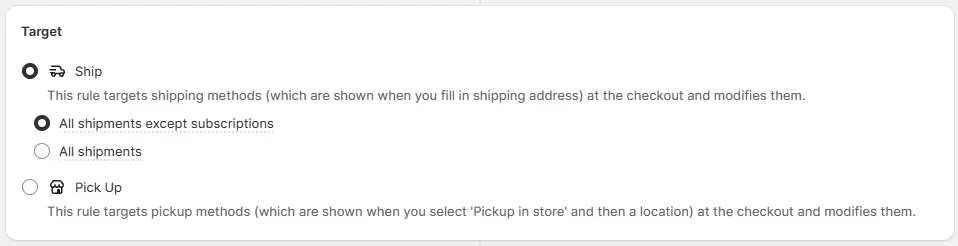
Next, on the same screen, select the appropriate [Target](/guides/en/get-started/concepts#target) to define where the rule should apply. We can choose *"Ship"* to reorder shipping methods shown after a **shipping address** is entered. Then, we can select:
* **All shipments except subscriptions** – applies the rule only to regular shipments and skips any orders containing subscription products. This is useful, as Shopify can automatically choose the cheapest shipping method for subscription products and hide all other shipping methods. Hiding this cheapest shipping method can cause "no shipping available" error. This is why we recommend using this option if you have subscription products to avoid this error.
* **All shipments** – applies the rule to every order, including those with subscription items.
Or, we can choose *"Pick Up"* if we want the rule to apply specifically to pickup methods shown when a customer selects **"Pickup in store"** during checkout.
If you are unsure about what to choose for any rule settings, many times the
default preselected option is the best choice. You can always start with the
default option and modify it later.
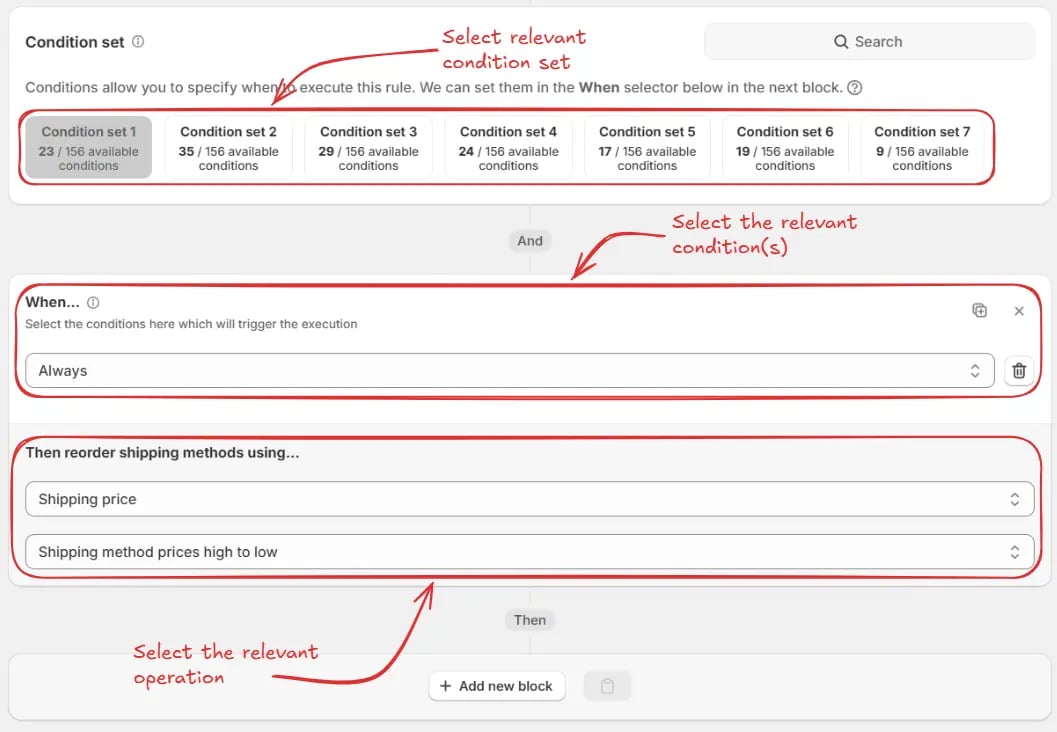
Next, on the same screen, select the relevant [condition set](/guides/en/get-started/concepts#condition-set), [condition](/guides/en/get-started/concepts#conditions-when), and [action](/guides/en/get-started/concepts#action-what).
> As an example here we are going to choose the default condition set, then set the rule to always run, and select the operation to reorder the shipping methods from shipping prices highest to lowest.
Finally, click the Save button at the top to create and save your rule.
## Test the rule
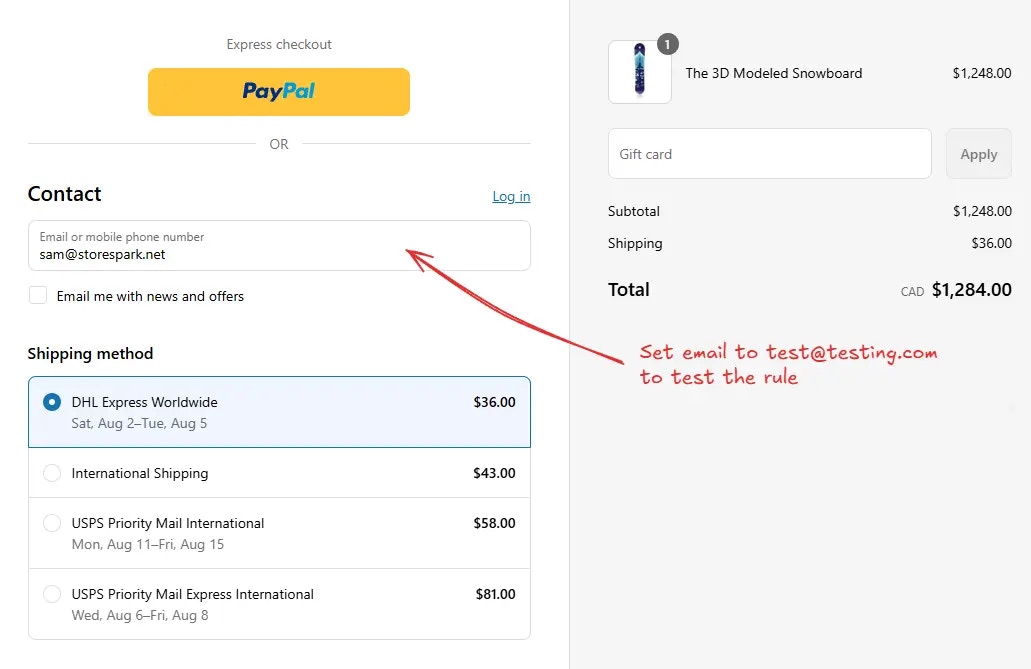
Since, the rule is set to testing status, we have to use `test@testing.com` as the email, instead of the actual email, to run the rule at checkout.
The image below shows the checkout page before the testing email
address was used. Please note the order of the shipping methods.
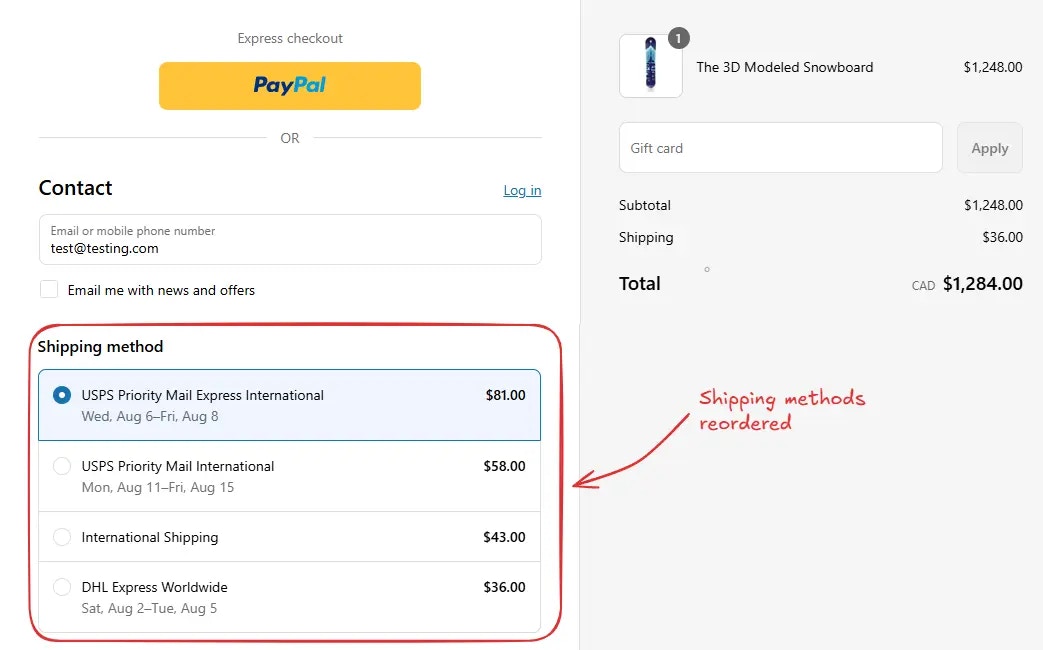
After setting the email, the checkout rule runs and you'll see the shipping methods are reordered. We can verify the most expensive shipping method is now at the top, as shown below.
## Setting the default preselected shipping method
By default, Shopify will always make the top shipping method the default preselected shipping method. So, using this rule, you can change the default preselected shipping method to any shipping method which you want, by making it the top shipping method.
To do this, as an example, you can use the **Fixed ranking** option, and set the rank to 1 for the shipping method you want to be the default preselected shipping method. Please make sure, "All other shipping methods will appear here after the above" is set to "Show in end".
Please note, to test this, you will need to activate the rule, and then clear
out the cookies/cache of the browser, so the default preselected shipping
method is not your previously selected shipping method (Shopify can save this
selection in cache for your browser). Or you can use a different brwoser as
well to see what your customers will see.
## Activate the rule
Once testing is done, we can activate the rule, so it can start making changes to the checkout for actual customers. Only activated rules can make changes to the checkout for all customers.
Click on **Rules** in the sidebar to view all rules. Select the rule you want to activate, then click the **Activate** button to activate it.
Rule activation is only available on paid plans. If you haven't upgraded your
plan yet, follow the instructions
[here](/guides/en/get-started/installation#upgrade-your-plan) to upgrade.
## Limitations
* Please remove USPS from shipping name, e.g., instead of 'USPS Ground Advantage', only use 'Ground Advantage' in rule.
 Then, in the **template selection**, choose an option based on your requirements. In most cases, you can choose the empty rule as a starting point and modify it to your needs. Even if you choose a prefilled template, you will be able to modify it later.
 Next, you’ll land on the **Create new reorder shipping methods rule** screen,
where you can configure your rule.
### Rule configuration
To configure the rule, first optionally we can add a name such as "Reorder shipping methods" to describe what it does. Then, select the rule [status](/guides/en/get-started/concepts#status): Testing, Active, or Deactivated.
Here, as an example, we are going to choose **Testing** status, so we can quickly test the rule without affecting the checkout for actual customers.
Next, you’ll land on the **Create new reorder shipping methods rule** screen,
where you can configure your rule.
### Rule configuration
To configure the rule, first optionally we can add a name such as "Reorder shipping methods" to describe what it does. Then, select the rule [status](/guides/en/get-started/concepts#status): Testing, Active, or Deactivated.
Here, as an example, we are going to choose **Testing** status, so we can quickly test the rule without affecting the checkout for actual customers.
 Next, on the same screen, select the appropriate [Target](/guides/en/get-started/concepts#target) to define where the rule should apply. We can choose *"Ship"* to reorder shipping methods shown after a **shipping address** is entered. Then, we can select:
* **All shipments except subscriptions** – applies the rule only to regular shipments and skips any orders containing subscription products. This is useful, as Shopify can automatically choose the cheapest shipping method for subscription products and hide all other shipping methods. Hiding this cheapest shipping method can cause "no shipping available" error. This is why we recommend using this option if you have subscription products to avoid this error.
* **All shipments** – applies the rule to every order, including those with subscription items.
Or, we can choose *"Pick Up"* if we want the rule to apply specifically to pickup methods shown when a customer selects **"Pickup in store"** during checkout.
Next, on the same screen, select the appropriate [Target](/guides/en/get-started/concepts#target) to define where the rule should apply. We can choose *"Ship"* to reorder shipping methods shown after a **shipping address** is entered. Then, we can select:
* **All shipments except subscriptions** – applies the rule only to regular shipments and skips any orders containing subscription products. This is useful, as Shopify can automatically choose the cheapest shipping method for subscription products and hide all other shipping methods. Hiding this cheapest shipping method can cause "no shipping available" error. This is why we recommend using this option if you have subscription products to avoid this error.
* **All shipments** – applies the rule to every order, including those with subscription items.
Or, we can choose *"Pick Up"* if we want the rule to apply specifically to pickup methods shown when a customer selects **"Pickup in store"** during checkout.
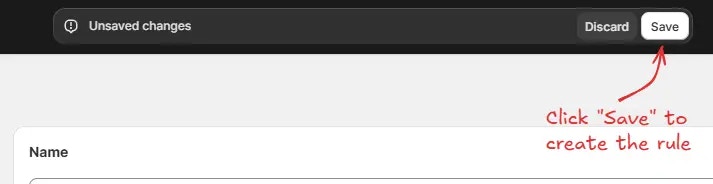
 Finally, click the Save button at the top to create and save your rule.
 ## Test the rule
Since, the rule is set to testing status, we have to use `test@testing.com` as the email, instead of the actual email, to run the rule at checkout.
## Test the rule
Since, the rule is set to testing status, we have to use `test@testing.com` as the email, instead of the actual email, to run the rule at checkout.
 After setting the email, the checkout rule runs and you'll see the shipping methods are reordered. We can verify the most expensive shipping method is now at the top, as shown below.
 ## Setting the default preselected shipping method
By default, Shopify will always make the top shipping method the default preselected shipping method. So, using this rule, you can change the default preselected shipping method to any shipping method which you want, by making it the top shipping method.
To do this, as an example, you can use the **Fixed ranking** option, and set the rank to 1 for the shipping method you want to be the default preselected shipping method. Please make sure, "All other shipping methods will appear here after the above" is set to "Show in end".
## Setting the default preselected shipping method
By default, Shopify will always make the top shipping method the default preselected shipping method. So, using this rule, you can change the default preselected shipping method to any shipping method which you want, by making it the top shipping method.
To do this, as an example, you can use the **Fixed ranking** option, and set the rank to 1 for the shipping method you want to be the default preselected shipping method. Please make sure, "All other shipping methods will appear here after the above" is set to "Show in end".
 ## Limitations
* Please remove USPS from shipping name, e.g., instead of 'USPS Ground Advantage', only use 'Ground Advantage' in rule.
## Limitations
* Please remove USPS from shipping name, e.g., instead of 'USPS Ground Advantage', only use 'Ground Advantage' in rule.