> ## Documentation Index
> Fetch the complete documentation index at: https://docs.checkoutrules.com/llms.txt
> Use this file to discover all available pages before exploring further.

# インストール

> ショッピファイ ストアに **BeSure チェックアウトルール** アプリをインストールして設定し、チェックアウト体験をカスタマイズ・強化する方法を学びましょう。

<iframe className="w-full aspect-video rounded-xl" src="https://www.youtube.com/embed/5KRBmWhMcog?si=Vc3665ze_uC_H8kL" title="BeSure インストール" style={{ border: 0 }} allow="accelerometer; autoplay; clipboard-write; encrypted-media; gyroscope; picture-in-picture" allowFullScreen />

## アプリをインストール

アプリをインストールするには、ショッピファイ アプリストアの [BeSure チェックアウトルール](https://apps.shopify.com/checkout-rules) にアクセスしてください。
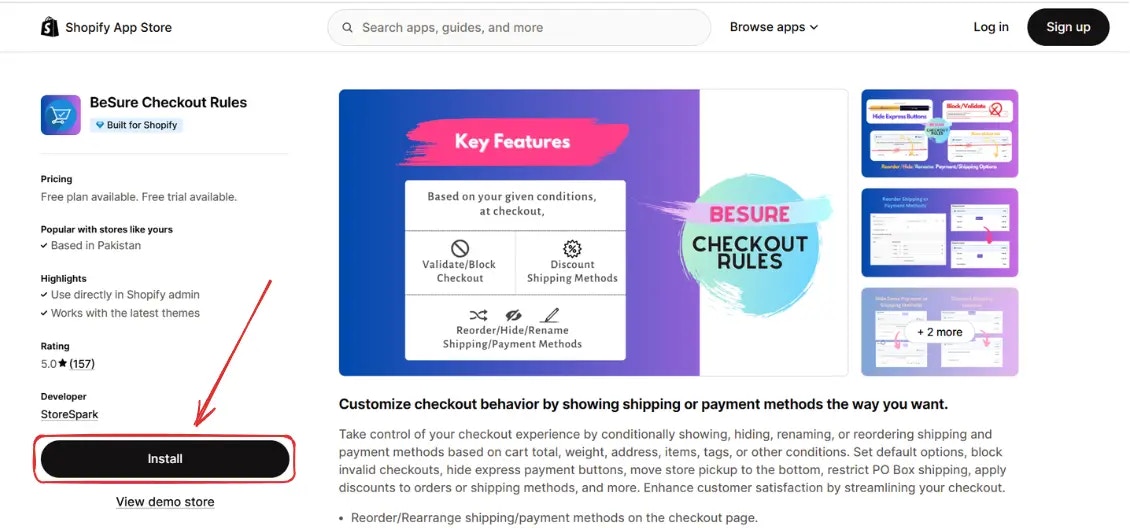
<img src="https://mintcdn.com/storespark/ZoBcc0QT_aT_tX8T/images/installation/besure-app-shopify-app-store.webp?fit=max&auto=format&n=ZoBcc0QT_aT_tX8T&q=85&s=ff87ddabe82f8286f297e7ab00eea432" alt="BeSure アプリ ショッピファイ アプリストア" width="1130" height="528" data-path="images/installation/besure-app-shopify-app-store.webp" />

## アプリを開く

インストール後、[ショッピファイ 管理画面](https://admin.shopify.com) に移動し、サイドバーの **アプリ** をクリックします。
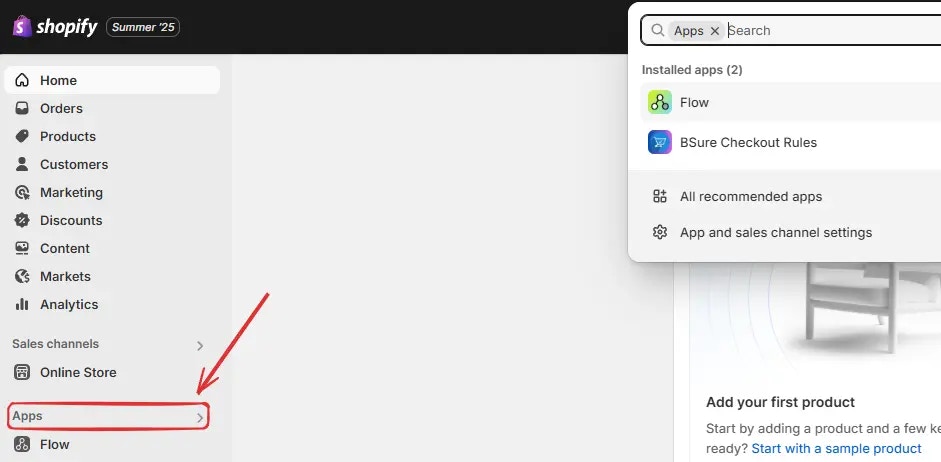
<img src="https://mintcdn.com/storespark/ZoBcc0QT_aT_tX8T/images/installation/shopify-admin-click-on-apps.webp?fit=max&auto=format&n=ZoBcc0QT_aT_tX8T&q=85&s=c26047ad84aaf06aa8a20345fc202f11" alt="ショッピファイ 管理画面でアプリをクリック" width="941" height="462" data-path="images/installation/shopify-admin-click-on-apps.webp" />

次に **BeSure チェックアウトルール** をクリックしてアプリを開きます。
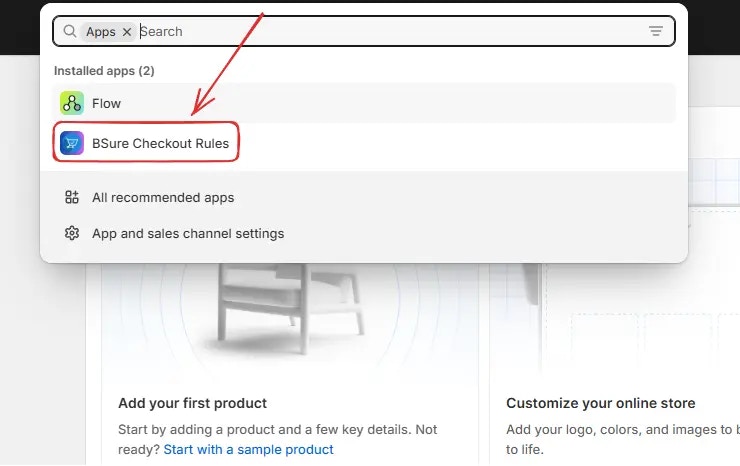
<img src="https://mintcdn.com/storespark/ZoBcc0QT_aT_tX8T/images/installation/shopify-admin-click-on-besure-app.webp?fit=max&auto=format&n=ZoBcc0QT_aT_tX8T&q=85&s=8908b4c8d6fd1873793e67dff56c80f0" alt="ショッピファイ 管理画面で BeSure アプリをクリック" width="740" height="466" data-path="images/installation/shopify-admin-click-on-besure-app.webp" />

## プランをアップグレード

アプリをインストールすると、デフォルトで **無料プラン** が有効になります。このプランは **テスト** または **開発** ストア向けで、アプリの機能を試すことができます。

ストアでルールを有効にするには、*BeSure チェックアウトルール → 設定 → 請求* に移動してください。
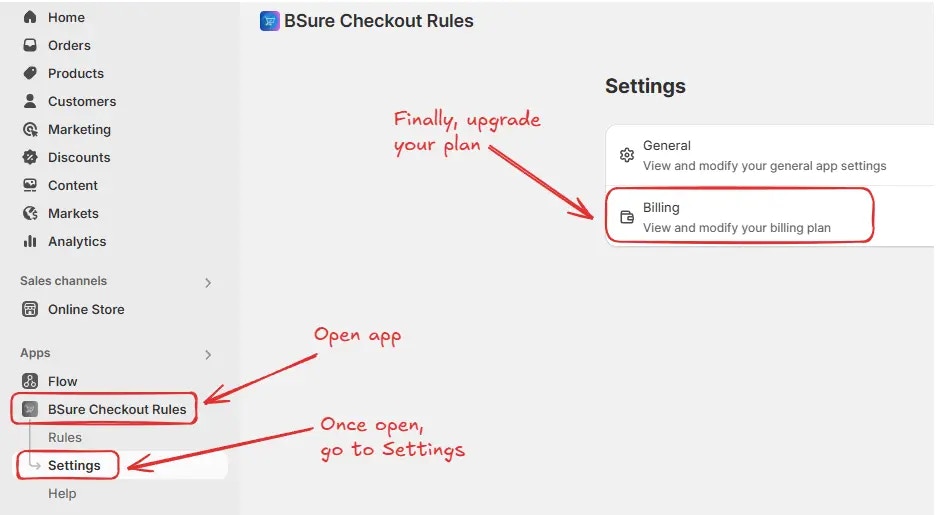
<img src="https://mintcdn.com/storespark/ZoBcc0QT_aT_tX8T/images/installation/navigation-to-billing.webp?fit=max&auto=format&n=ZoBcc0QT_aT_tX8T&q=85&s=58ff1a500874975e742cae88a7fec664" alt="請求画面へのナビゲーション" width="936" height="515" data-path="images/installation/navigation-to-billing.webp" />

その後、**請求** 画面にリダイレクトされます。**月額** または **年額** タブを選択し、希望するオプションの **プランを選択** をクリックします。\
プランをアップグレードすると、ストアでルールを有効にできるようになります。
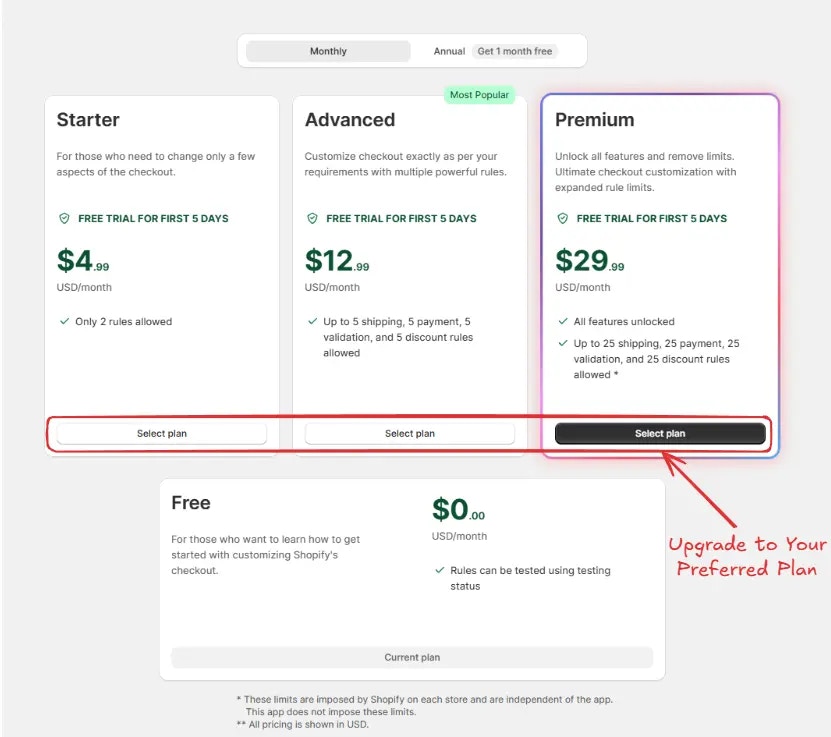
<img src="https://mintcdn.com/storespark/ZoBcc0QT_aT_tX8T/images/installation/choose-plan.webp?fit=max&auto=format&n=ZoBcc0QT_aT_tX8T&q=85&s=6fa12aa7007504e73e6fe8c4148822ea" alt="プランを選択" width="831" height="737" data-path="images/installation/choose-plan.webp" />

次に **サブスクリプション承認** 画面にリダイレクトされます。**支払い方法** を選択し、**「承認」をクリック** してアップグレードを完了し、プランを有効化します。
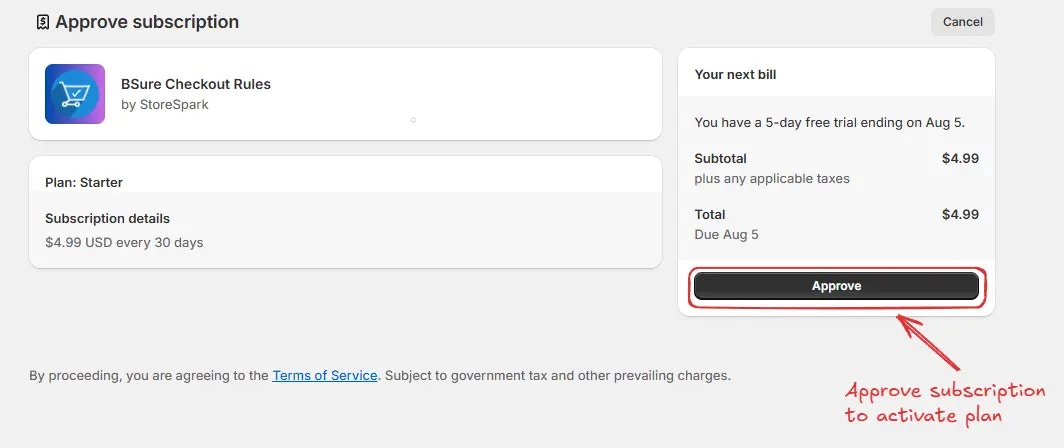
<img src="https://mintcdn.com/storespark/ZoBcc0QT_aT_tX8T/images/installation/approve-subscription.webp?fit=max&auto=format&n=ZoBcc0QT_aT_tX8T&q=85&s=05ff142ca3d57cd9bdafc58ffa462465" alt="サブスクリプション承認" width="1064" height="448" data-path="images/installation/approve-subscription.webp" />

プランをアップグレードした後、ストアで **ルールを有効化** できるようになります。
