

Rule overview
This rule allows you to apply discounts to specific product prices at checkout based on defined conditions. You can offer a percentage discount, a fixed amount off, or set a specific fixed price using criteria such as customer tags, collections, product SKUs, or other conditions. You can create either a discount code or an automatic discount. Customers must enter the code at checkout to receive a discount if a discount code is created. If an automatic discount is selected, it will be applied automatically to eligible products when the configured conditions are met.Supported operations
Sample configuration
The following steps show how to create and configure a Discount Product Amount rule using the app.Create a new rule
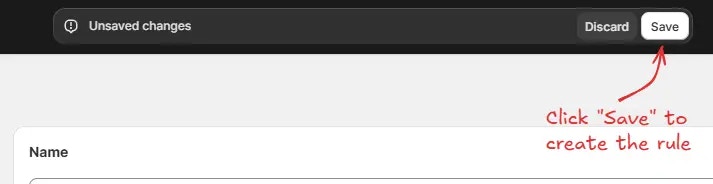
From your Shopify admin, open the app. In the sidebar, go to the Rules section and click “Create Rule”. Then, You’ll be redirected to the Select checkout rule type screen. Choose category “Discount” → select checkout rule type “Discount product amount” → click “Select Rule”.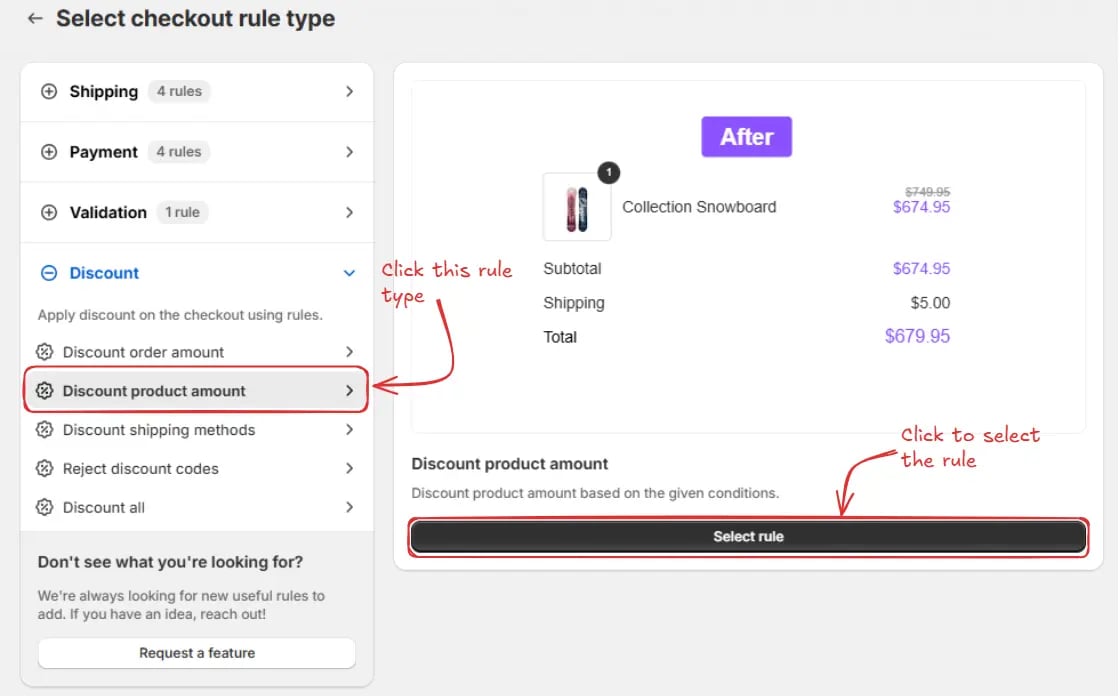
Rule configuration
To configure the rule, first optionally add a name such as “Discount product amount” to describe what it does if you want to apply an “Automatic discount”.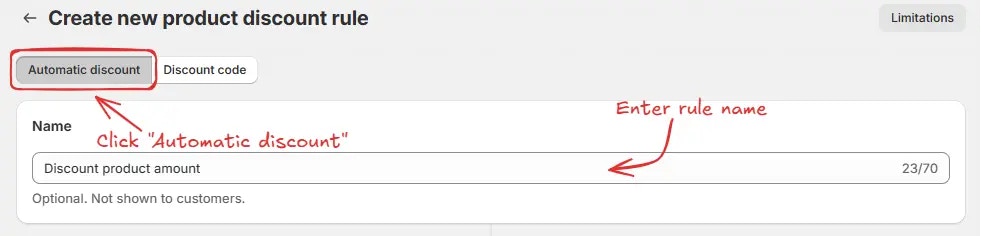
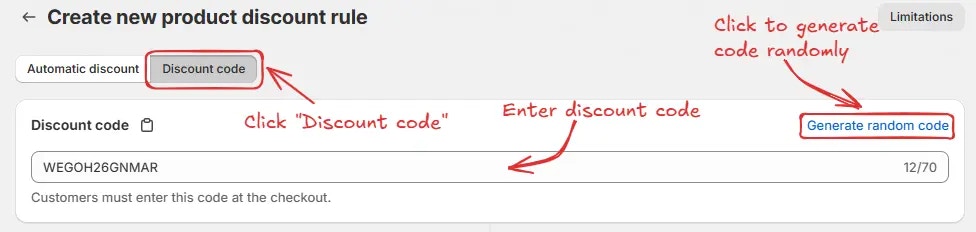
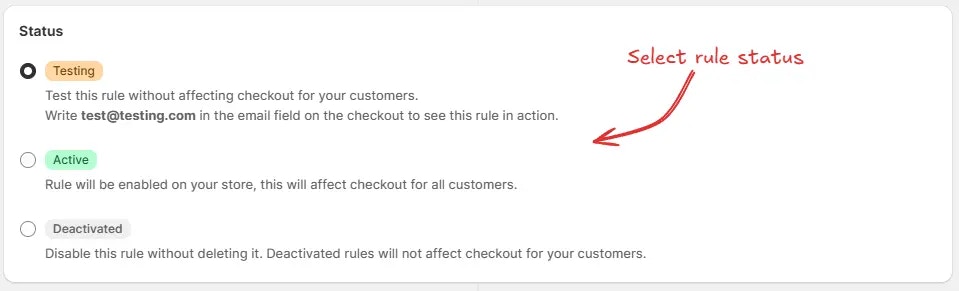
If you select schedule dates while the rule is set to Active, the status becomes Scheduled instead of Active. The rule will run from the start date and time until the end date and time, if one is set.
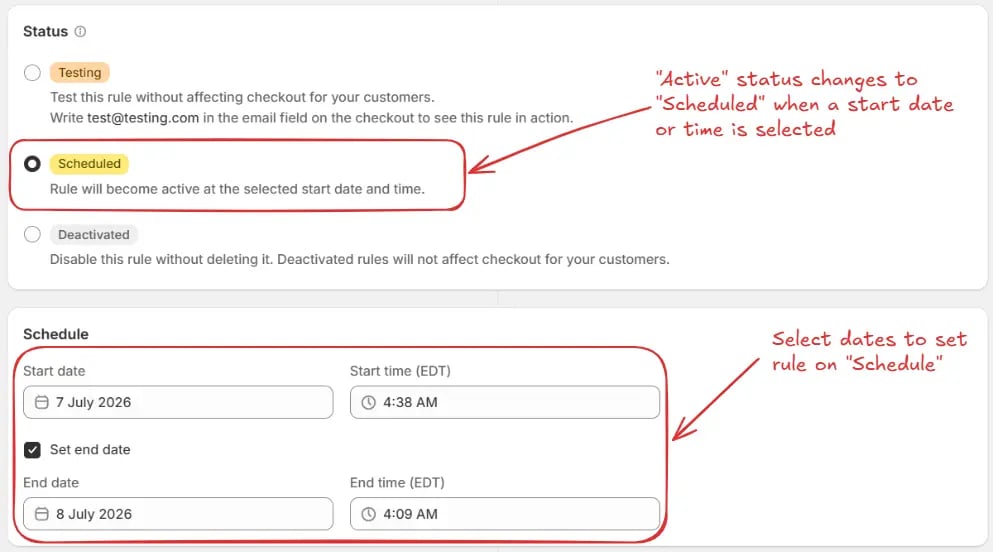
For this example, we are not using a schedule and are keeping Testing
status.
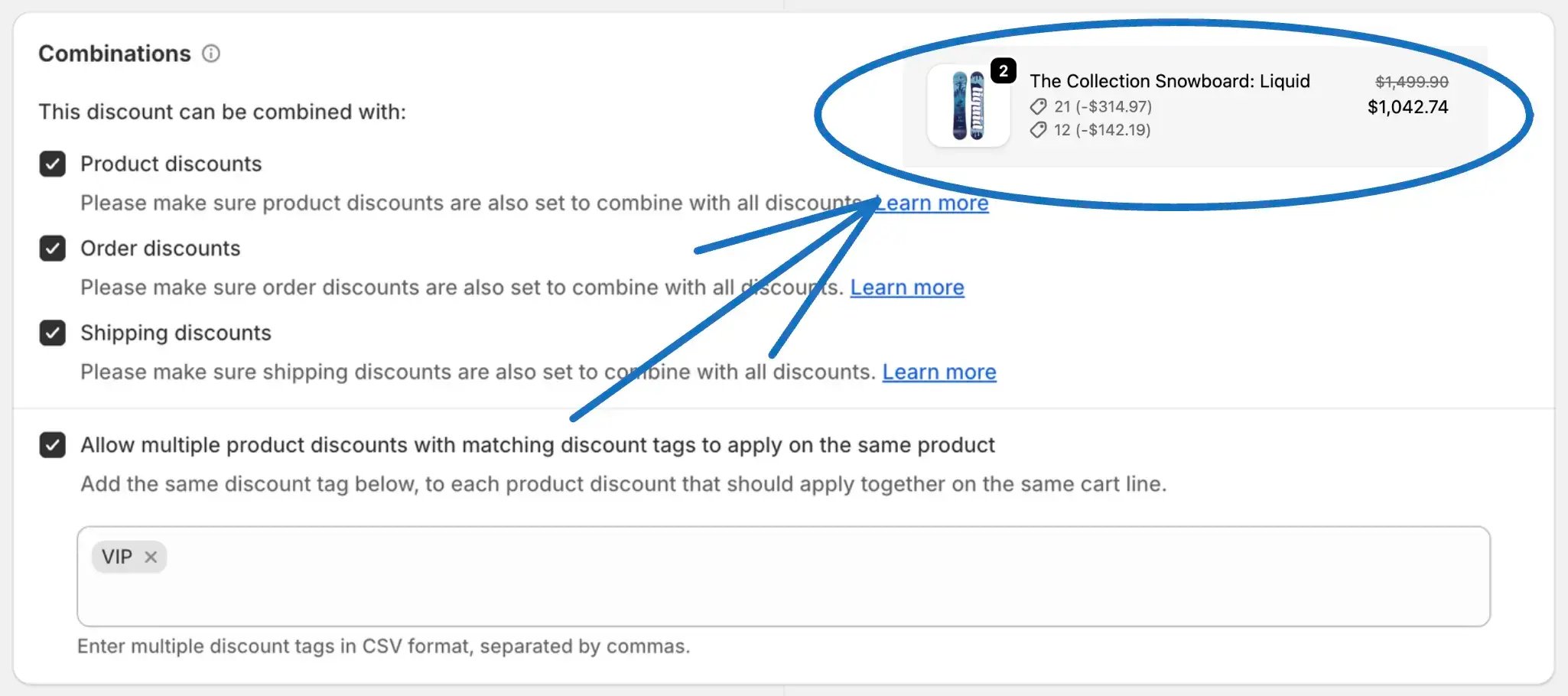
- Product discounts – This enables multiple product level discounts to be applied together. Ensure the other product discounts are also set to combine with product discounts.
- Order discounts – This enables the product discount to work together with overall order level discounts. Make sure order discounts are also set to allow combinations with product discounts.
- Shipping discounts – This allows the product discount to be used together with shipping level discounts. Confirm that shipping discounts are also set to combine with product discounts.
- Allow multiple product discounts with matching discount tags to apply on the same product - Only Shopify Plus stores can allow multiple product discounts to apply to the same product when the discounts share matching discount tags. For example, if two product discounts use the tag VIP, both discounts can apply to the same product.
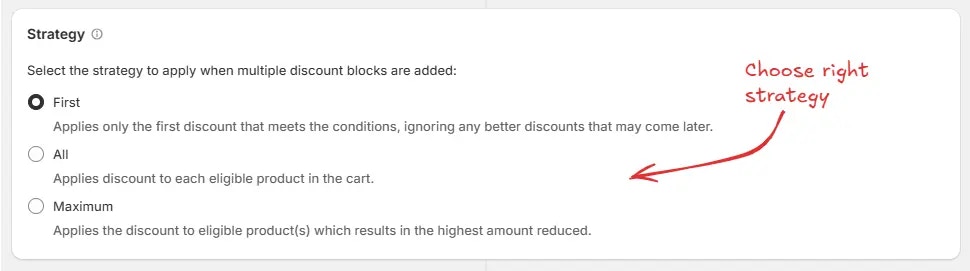
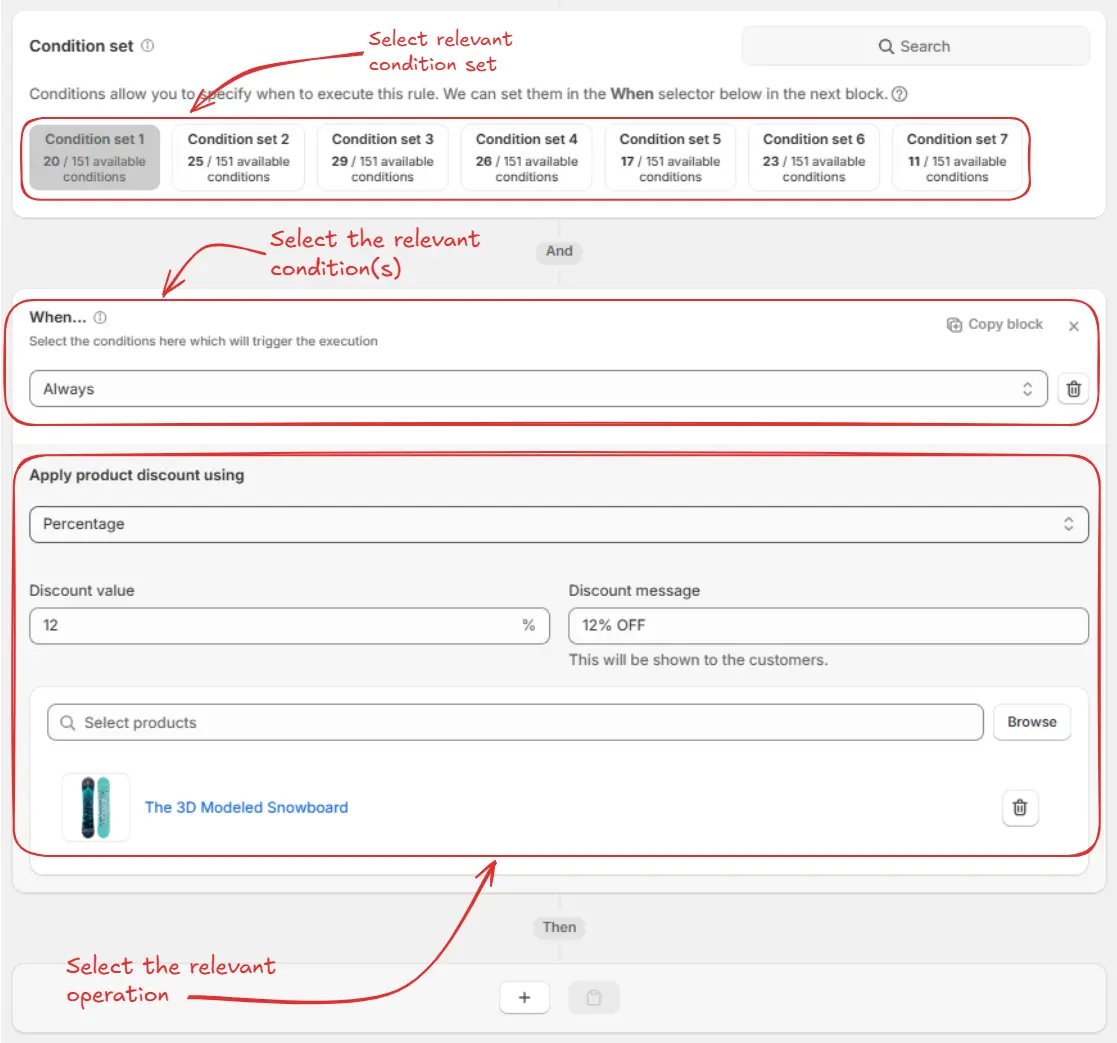
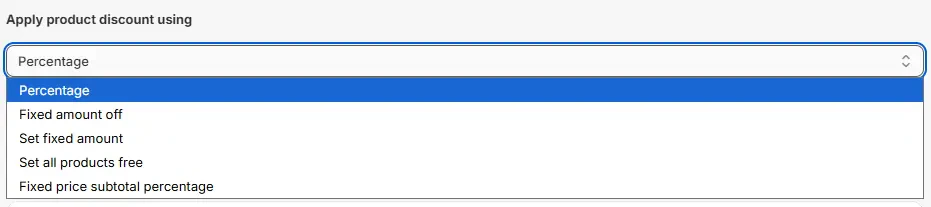
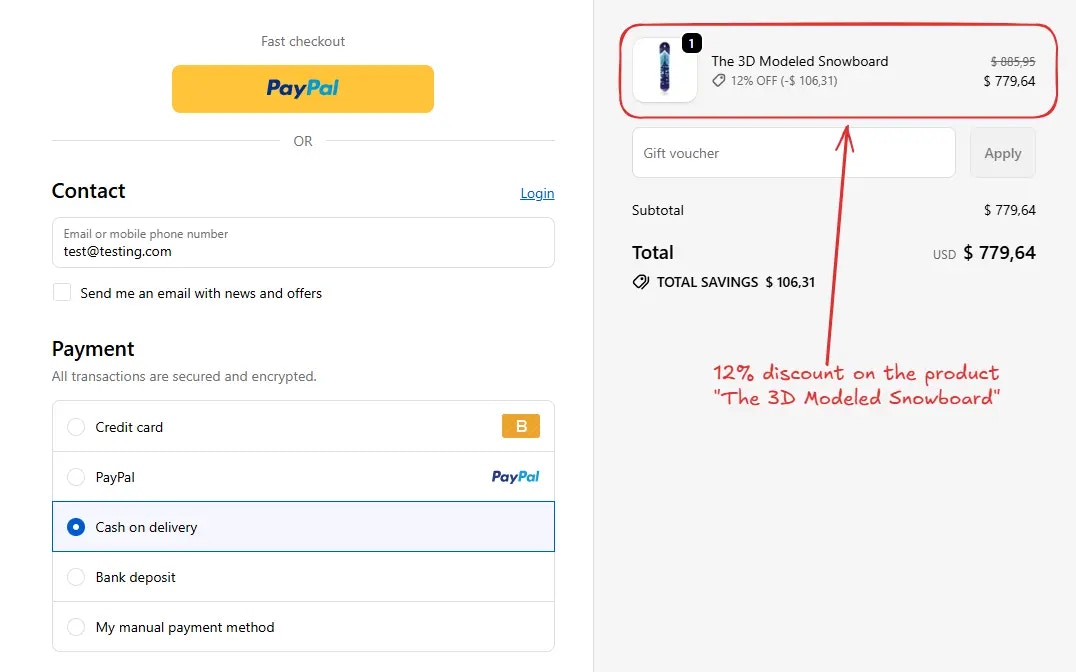
As an example, we will choose the default Condition set 1. Then, we will configure the rule to run Always and configure it to apply a 12% discount using the Percentage option. The discount message “12% OFF” will be shown to customers at checkout. We then select the product The 3D Modeled Snowboard to apply the discount to that product.


Test the rule
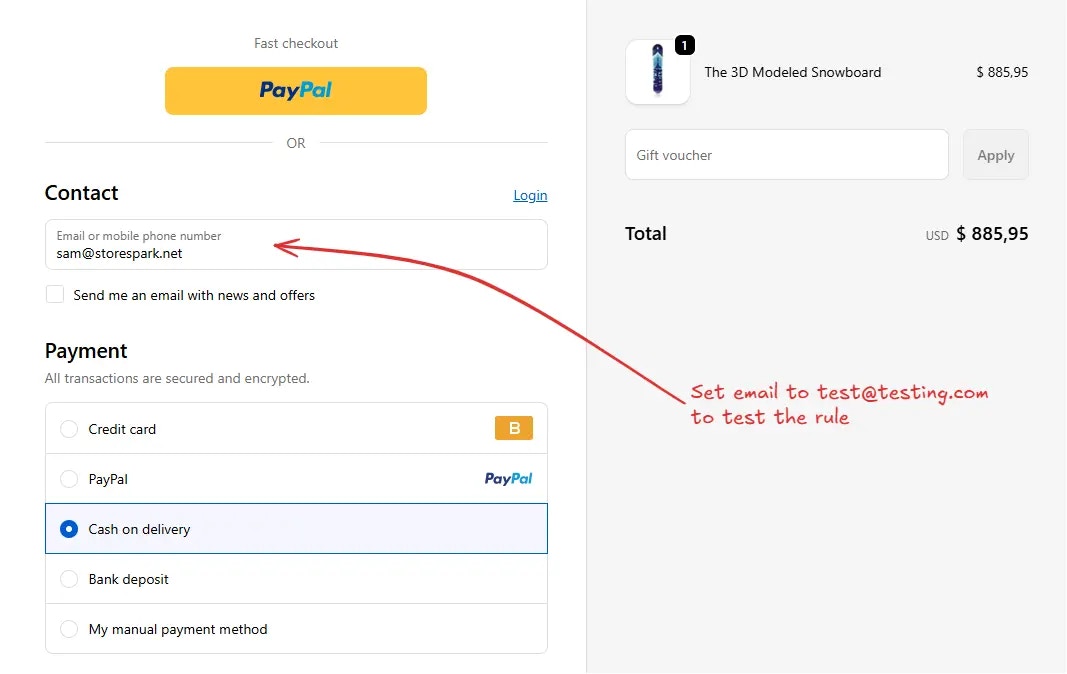
Since, the rule is set to testing status, we have to use[email protected] as the email, instead of the actual email, to run the rule at checkout.
Activate the rule
Once testing is done, we can activate the rule, so it can start making changes to the checkout for actual customers. Only activated rules can make changes to the checkout for all customers. Click on Rules in the sidebar to view all rules. Select the rule you want to activate, then click the Activate button to activate it.
Limitations
- This rule is incompatible with draft-order-based checkout and apps that use draft-order checkout.
- If checkout URL contains
.../checkouts/do/...,domeans draft order and this rule will not run.