

Rule overview
This rule allows you to reject certain discount codes at checkout based on the defined conditions. You can block specific discount codes from being applied using criteria such as order total amount, customer tags, shipping address, product tags, etc. When a customer enters a discount code that matches the configured conditions, the rule prevents the code from being applied and shows a custom rejection message at checkout. This helps enforce discount policies, protect margins, and prevent discount codes from being used in situations where they should not apply.Sample configuration
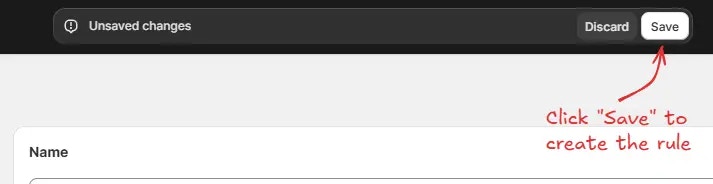
The following steps show how to create and configure a Reject discount codes rule using the app.Create a new rule
From your Shopify admin, open the app. In the sidebar, go to the Rules section and click “Create Rule”. Then, You’ll be redirected to the Select checkout rule type screen. Choose category “Discount” → select checkout rule type “Reject discount codes” → click “Select Rule”.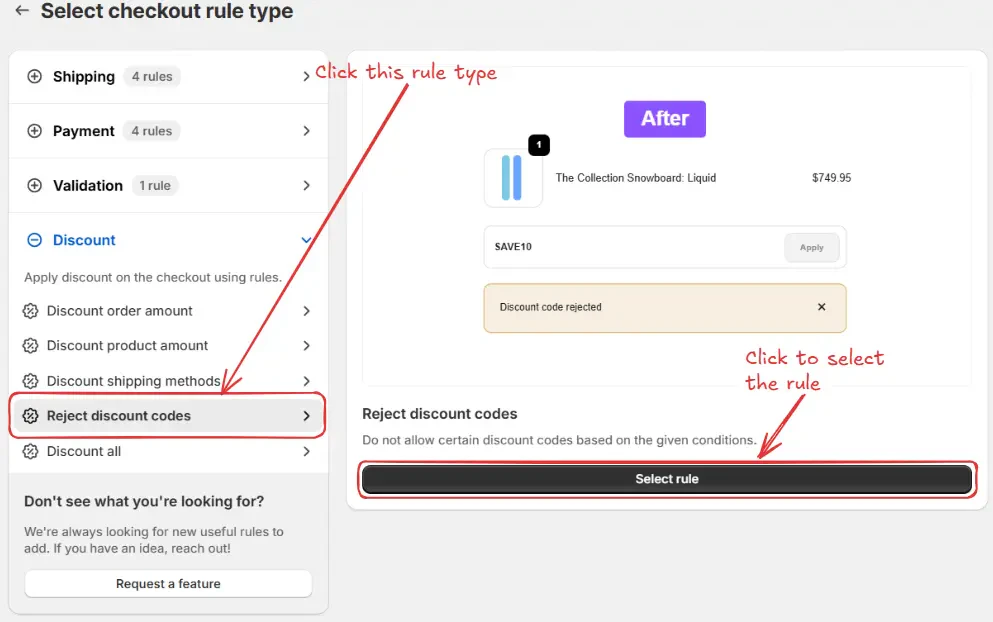
Rule configuration
To configure the rule, first optionally we can add a name such as “Reject discount codes” to describe what it does. Then, select the rule status: Testing, Active, Deactivated, or Scheduled. Here, as an example, we are going to choose Testing status, so we can quickly test the rule without affecting the checkout for actual customers.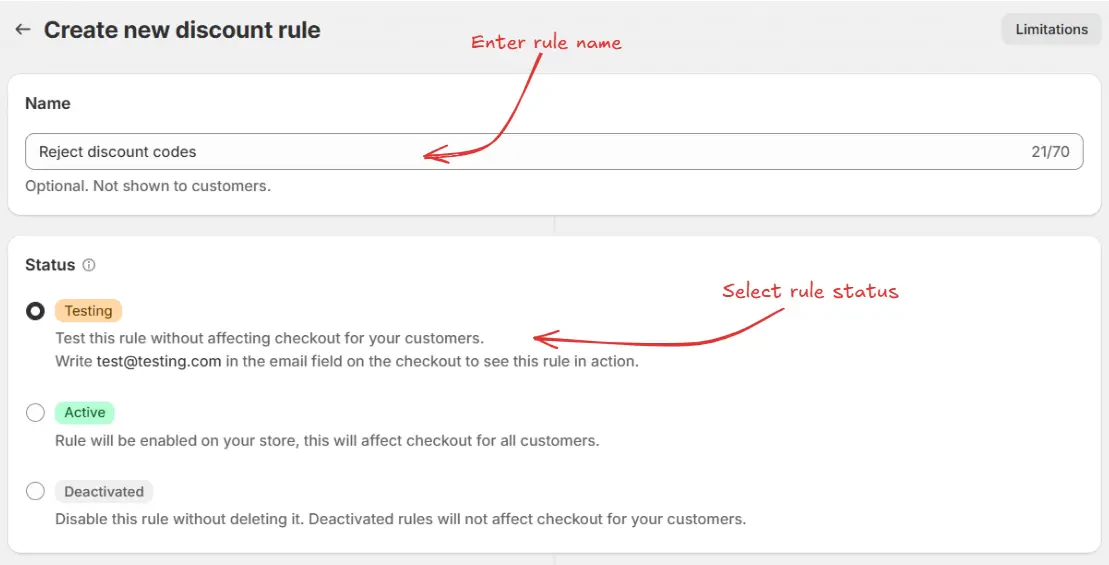
If you select schedule dates while the rule is set to Active, the status becomes Scheduled instead of Active. The rule will run from the start date and time until the end date and time, if one is set.
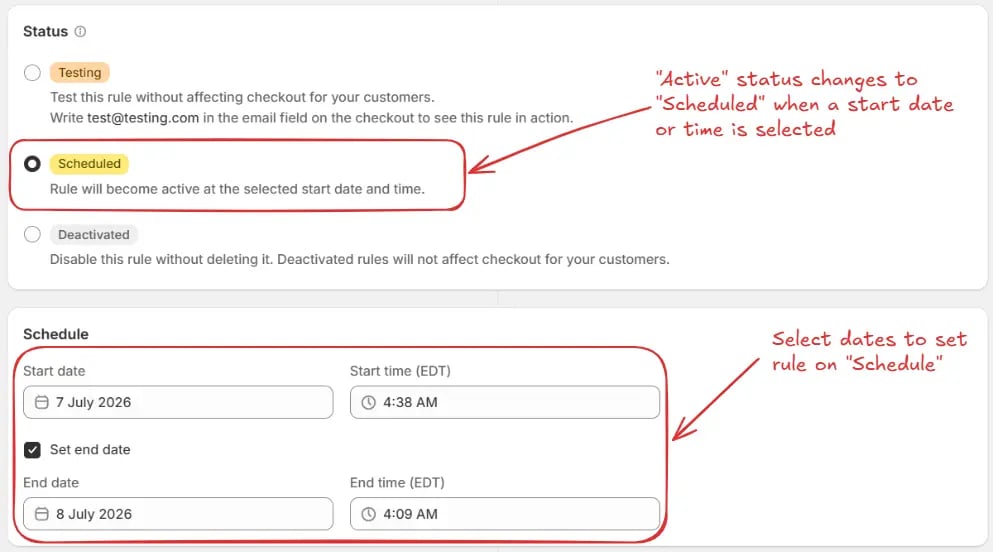
For this example, we are not using a schedule and are keeping Testing
status.
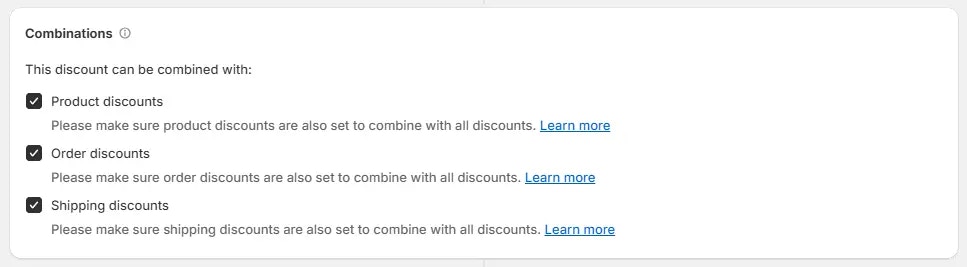
- Product discounts – This lets the order discount be used alongside any product level discounts. Make sure product discounts are also configured to combine with order discounts.
- Order discounts – This enables multiple order level discounts to be applied together. Ensure the other order discounts are also set to combine with order discounts.
- Shipping discounts – This allows the order discount to be used together with shipping level discounts. Confirm that shipping discounts are also set to combine with order discounts.
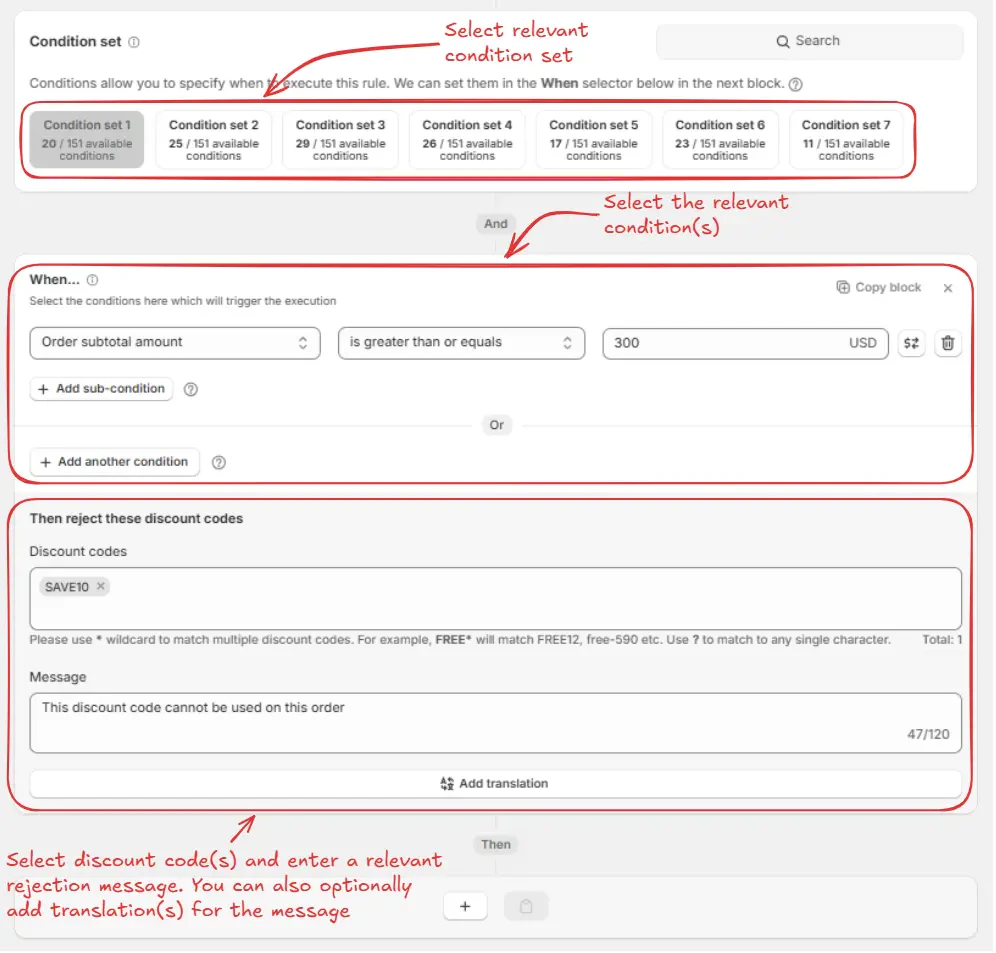
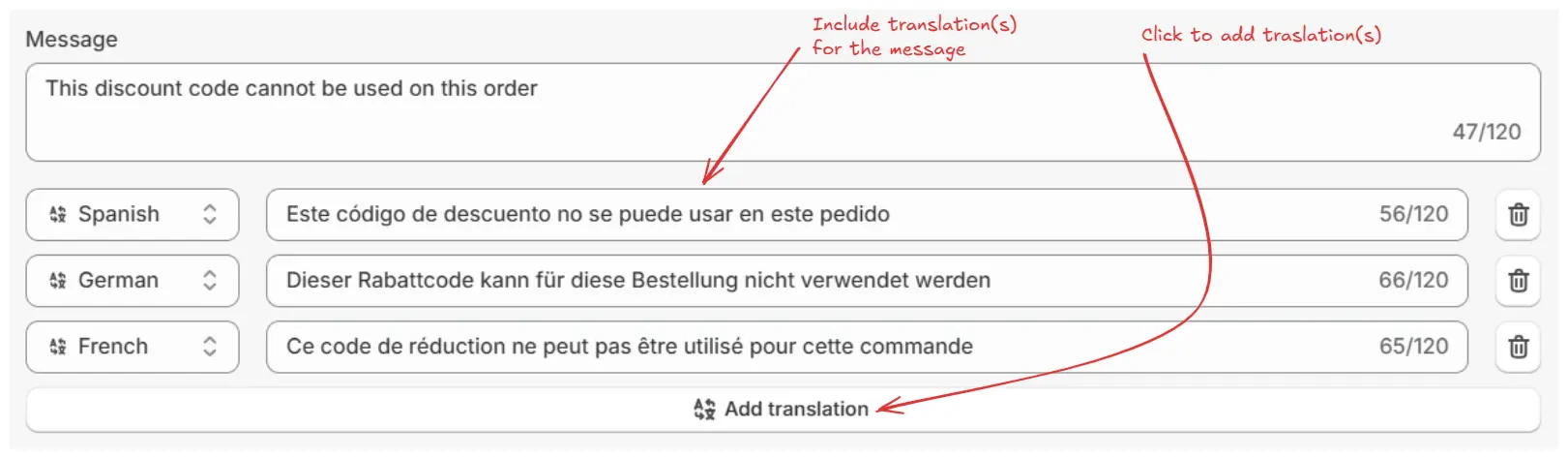
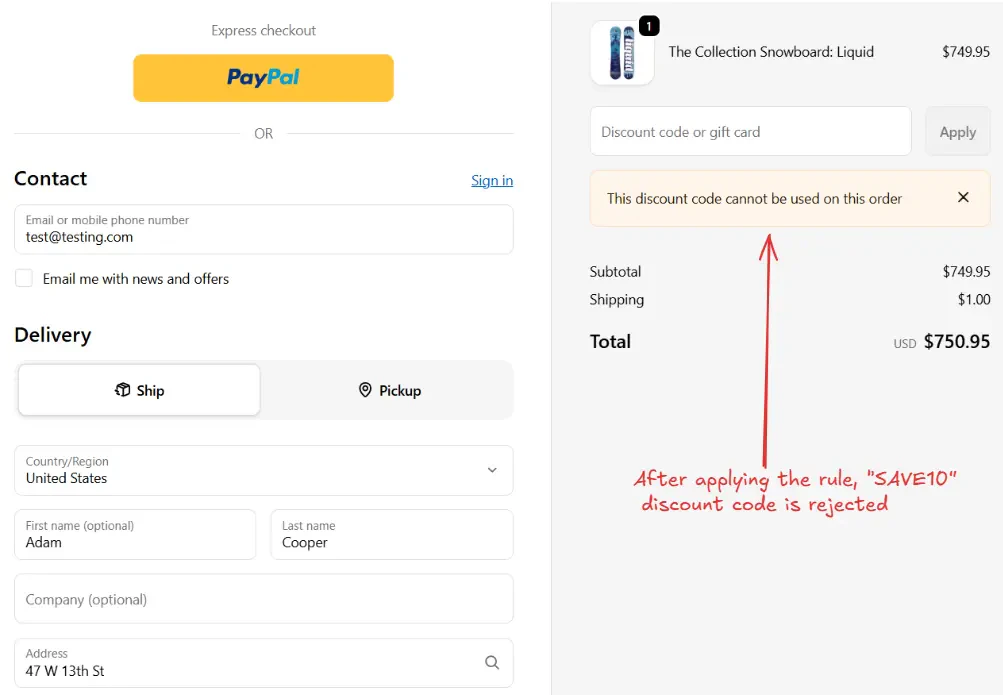
As an example, here we are going to choose the default condition set 1. Then we are setting the rule to run when Order subtotal amount is greater than or equal to 300, and configuring it to reject the discount code “SAVE10”. The rejection message “This discount code cannot be used on this order” will be shown to customers at checkout when they try to apply it.
Test the rule
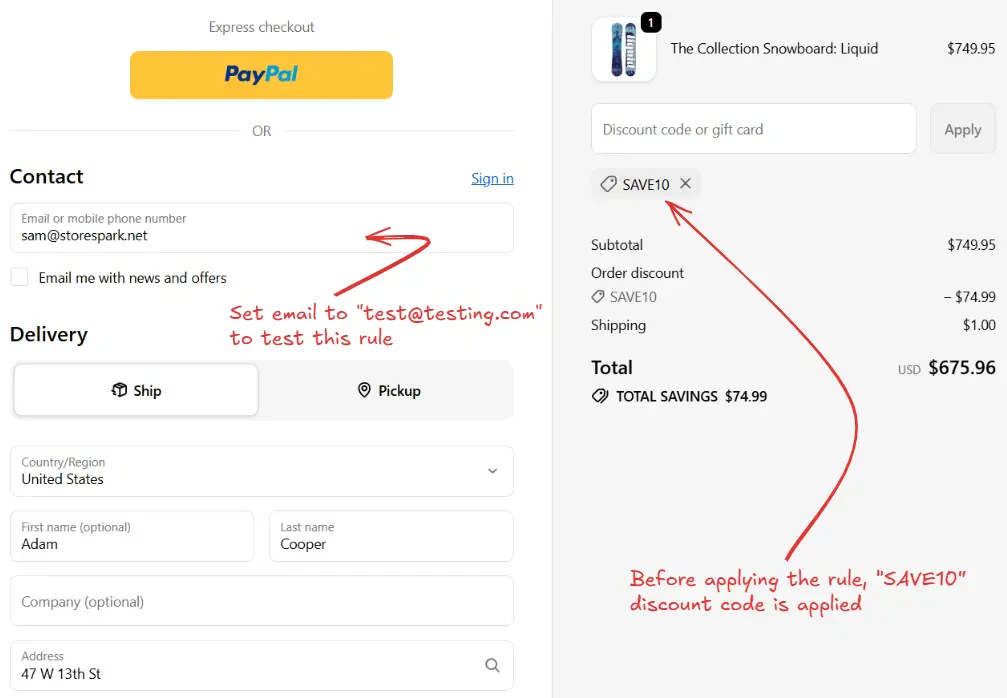
Since, the rule is set to testing status, we have to use[email protected] as the email, instead of the actual email, to run the rule at checkout.
Activate the rule
Once testing is done, we can activate the rule, so it can start making changes to the checkout for actual customers. Only activated rules can make changes to the checkout for all customers. Click on Rules in the sidebar to view all rules. Select the rule you want to activate, then click the Activate button to activate it.
Limitations
- This rule is incompatible with draft-order-based checkout and apps that use draft-order checkout.
- If your checkout URL includes
.../checkouts/do/...,dostands for draft order. This rule won’t run on that checkout.